Run actions
Run an action through its generated form (immediately, queued in the background, or in bulk), read the result, export CSV and check the run history.
The Run action page is used for day-to-day operations: select an action, fill in the generated form, run it and read the result. Users do not need to know the SQL or the data source behind the action.
Required roles
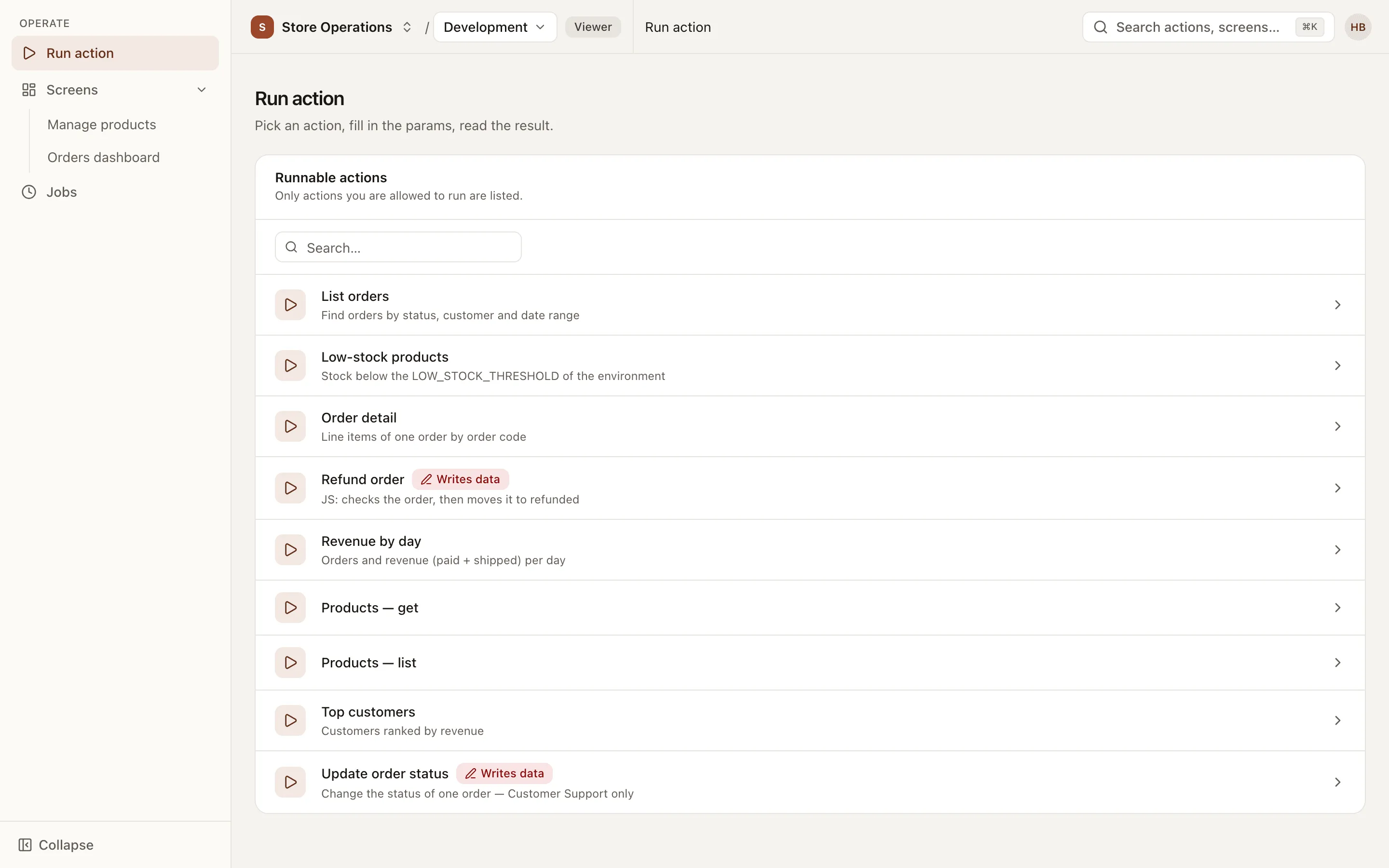
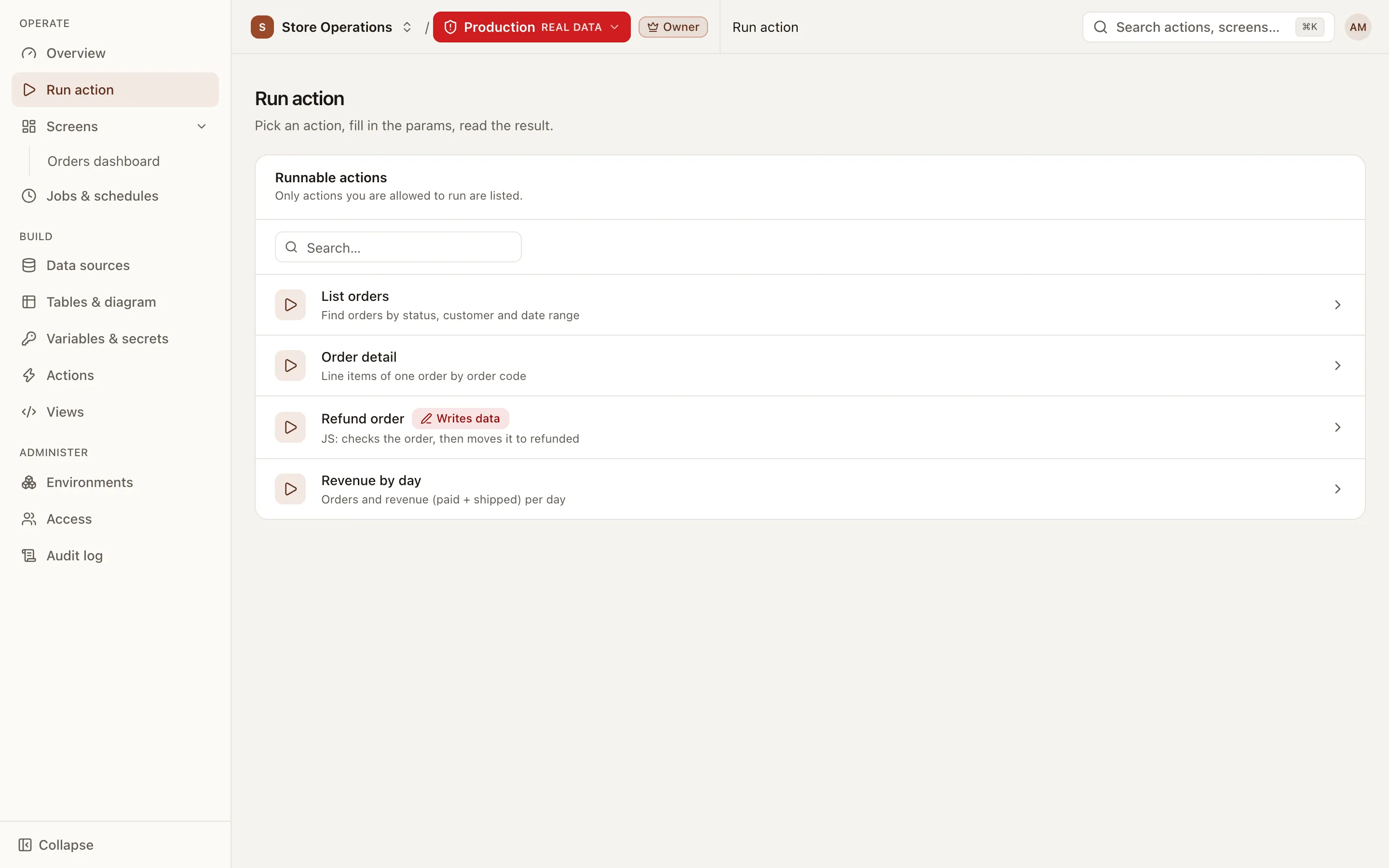
Section titled “Required roles”Every role, from Viewer up. The list contains only actions that the user is allowed to run and that are enabled in the environment selected in the top bar. If an action you need is missing, ask a project admin for access or switch to another environment.
Select an action
Section titled “Select an action”- Go to Operate > Run action.
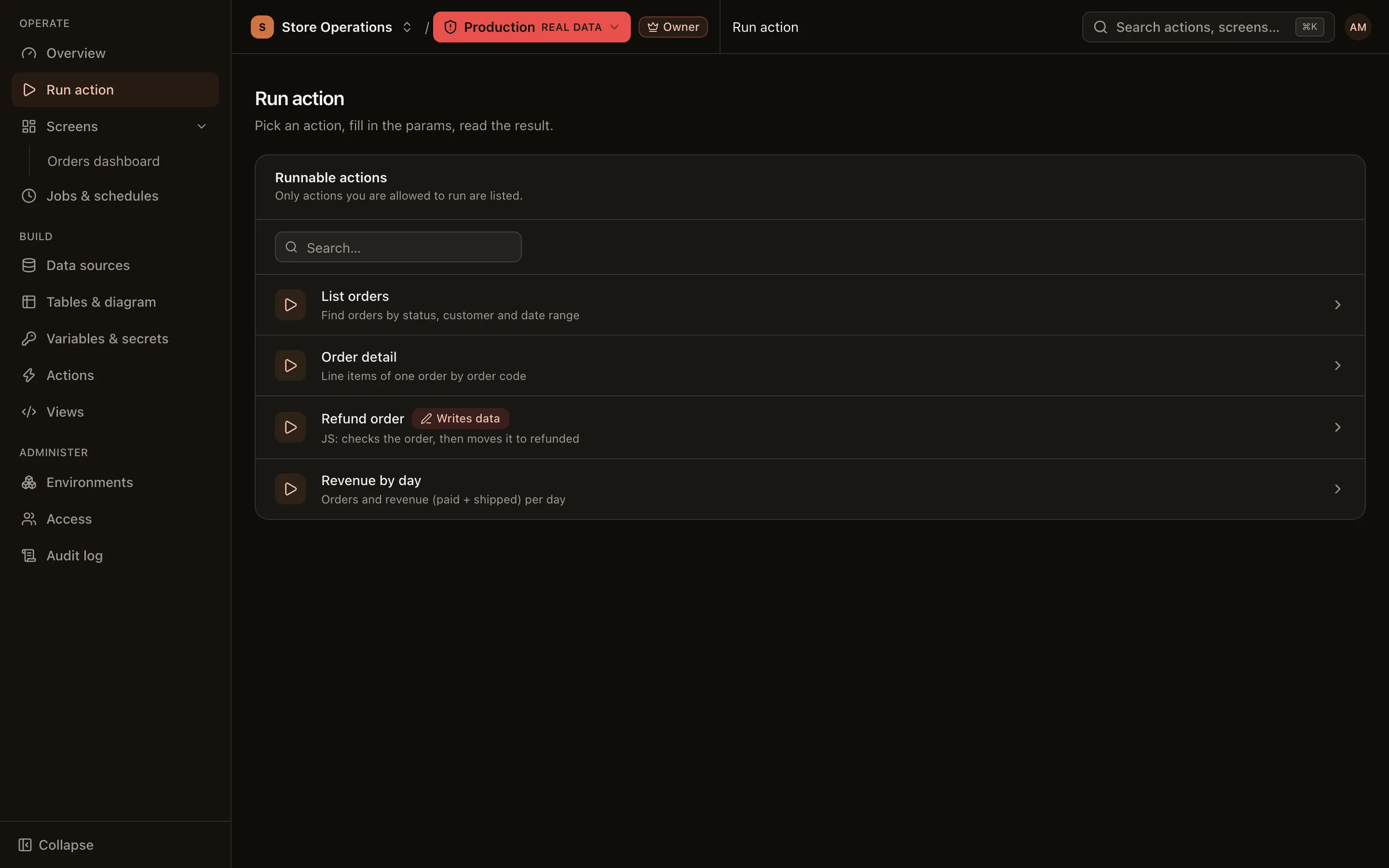
- Check the environment in the top bar. In a production environment, the environment selector turns red.
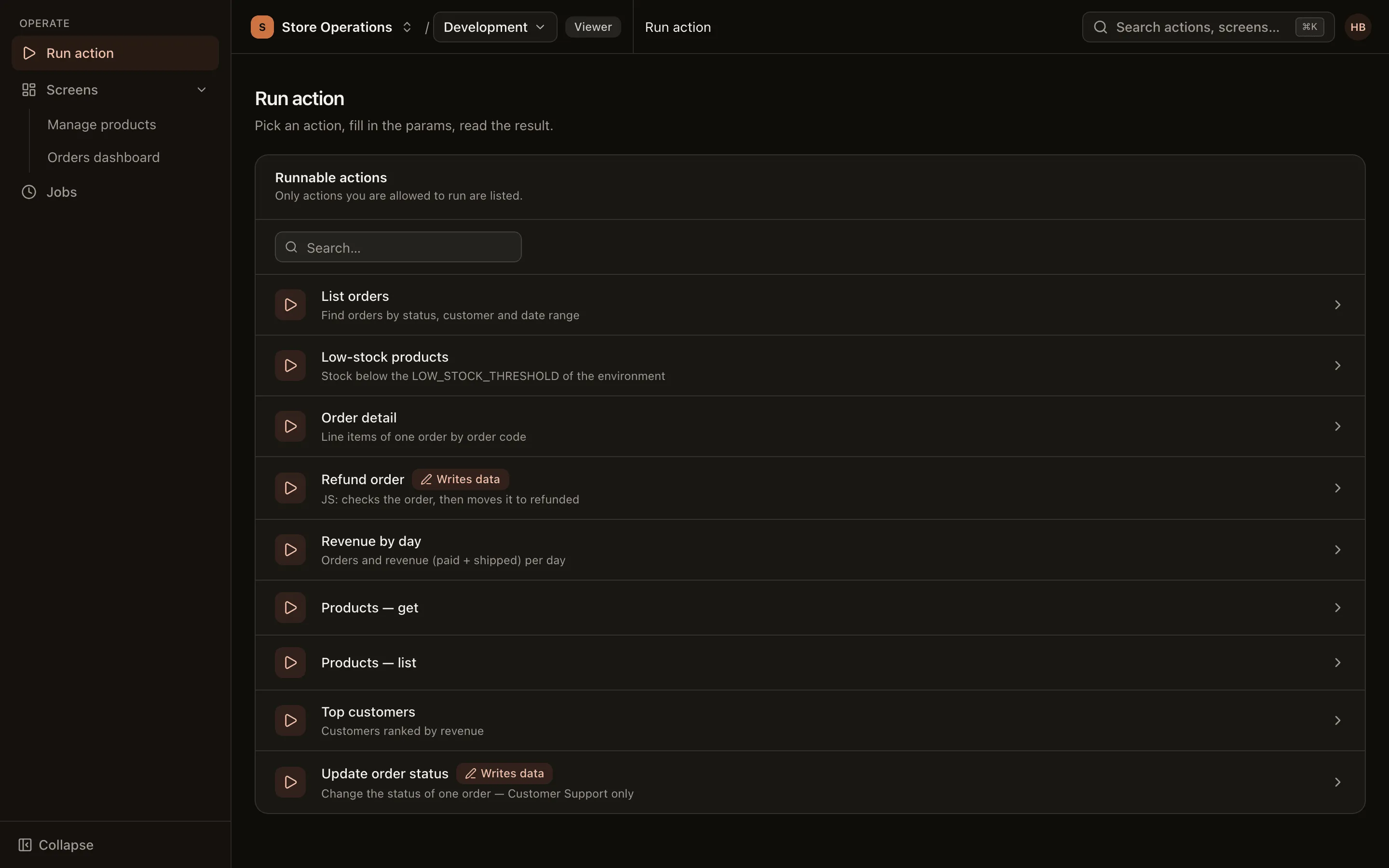
- Find the action in the Runnable actions list (it has a search box), then click it. You can also open an action from the Search actions, screens… box in the top bar.
Fill in the params and run
Section titled “Fill in the params and run”The Parameters form is generated from the action’s params: text fields, number fields, switches, date and time pickers, drop-down lists. Required fields are marked *; default values are pre-filled.
- Read-only action: click Run.
- Write action: click Run (needs confirmation). The confirmation dialog shows the exact params that will be used and the environment. Review them, then click Run on environment. In a production environment, the button turns red and the dialog states that this is real data.
Next to the run button, Runs on: and the environment name are always shown, so you know which environment’s data the run will affect.
Read the result
Section titled “Read the result”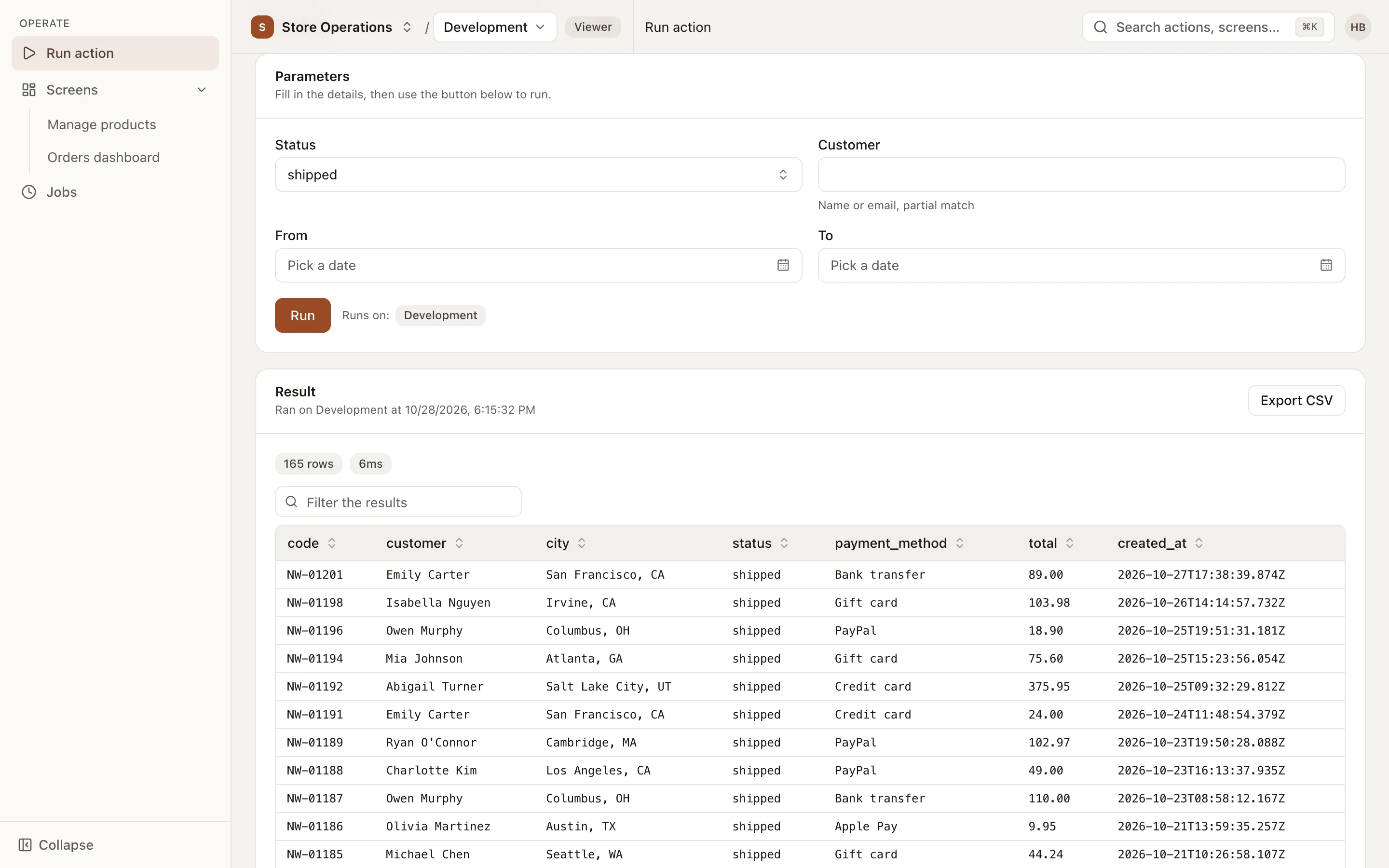
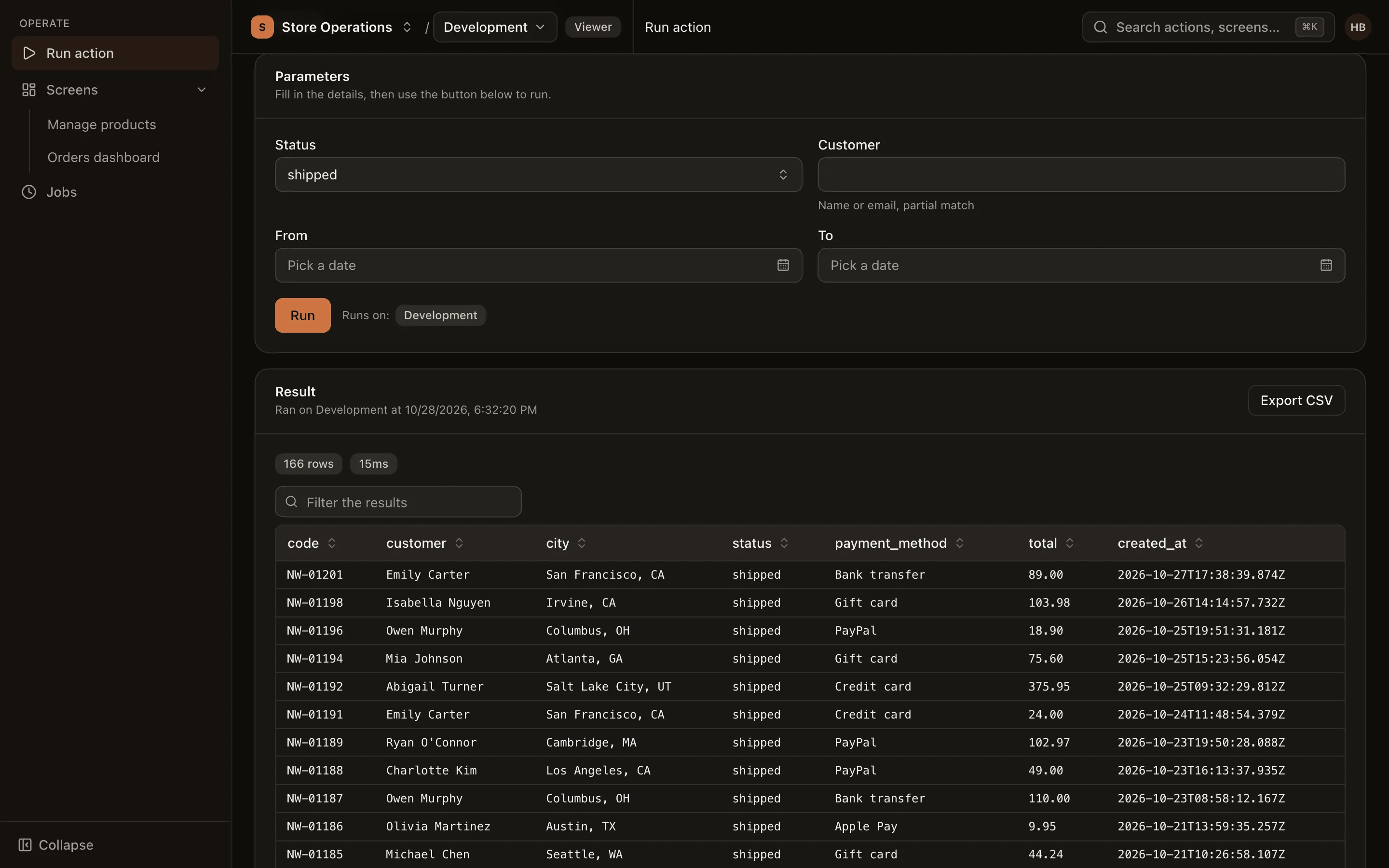
- The Result card shows the environment, the run time, the row count and the duration.
- Click a column header to sort. Type in Filter the results to filter the loaded rows.
- With 500 rows or more, the table uses virtual scrolling to keep the page responsive.
- Results are capped by the action’s max rows. When results are truncated, the page shows Showing only the first N rows; narrow the filters to see all rows.
- Click Export CSV to download the result.
- For write actions, the page shows the number of affected rows.
If a run fails, the page shows an error message with a suggested fix. Editors and above also see Technical details. When you report a problem to a project editor, include the Run ID from the run history.
Run in the background: add to the queue
Section titled “Run in the background: add to the queue”For SQL write actions, the form also has an Add to the queue button. The action runs in the background (after the same confirmation step). Click View progress to monitor it on Jobs & schedules. A job records only the row count and errors; it does not store returned data.
Bulk run
Section titled “Bulk run”Use Bulk run (advanced) at the bottom of the page to run the same write action for many sets of params, for example to update the status of 2,000 orders. This feature is also available only for SQL write actions.
-
Open the Bulk run (advanced) section.
-
Paste a JSON array in which each element is a params object. Click Insert a template to get a skeleton with the correct param names:
[{ "id": 101, "status": "paid" },{ "id": 102, "status": "paid" }] -
Each item is validated in the same way as the form. A missing required field, a wrong type, a value not in the list or an unknown param is reported by item number. Fix all errors before running.
-
Preview the first items, then click Run N items and confirm. In a production environment, you must retype the item count to confirm.
-
Monitor the job on Jobs & schedules.
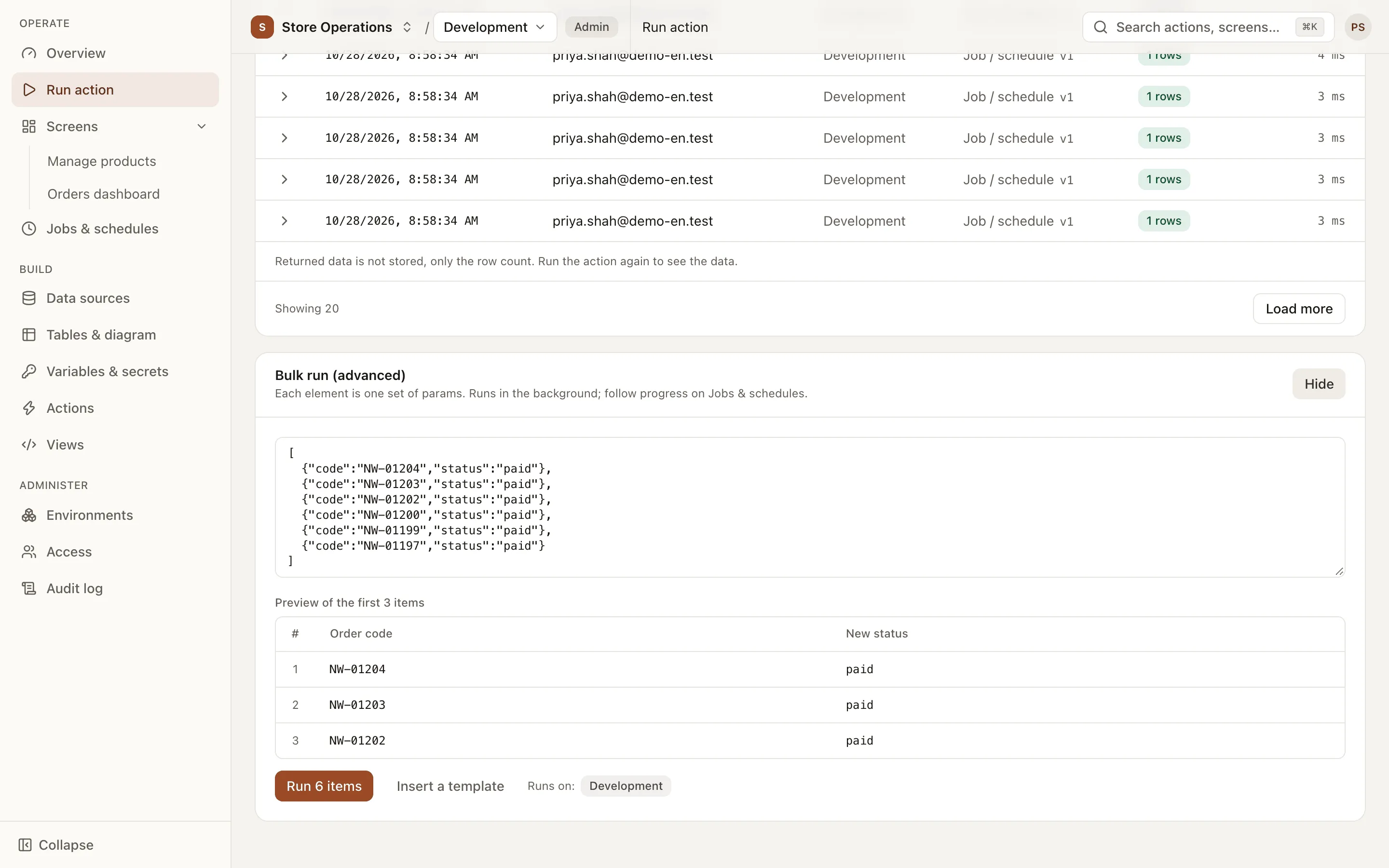
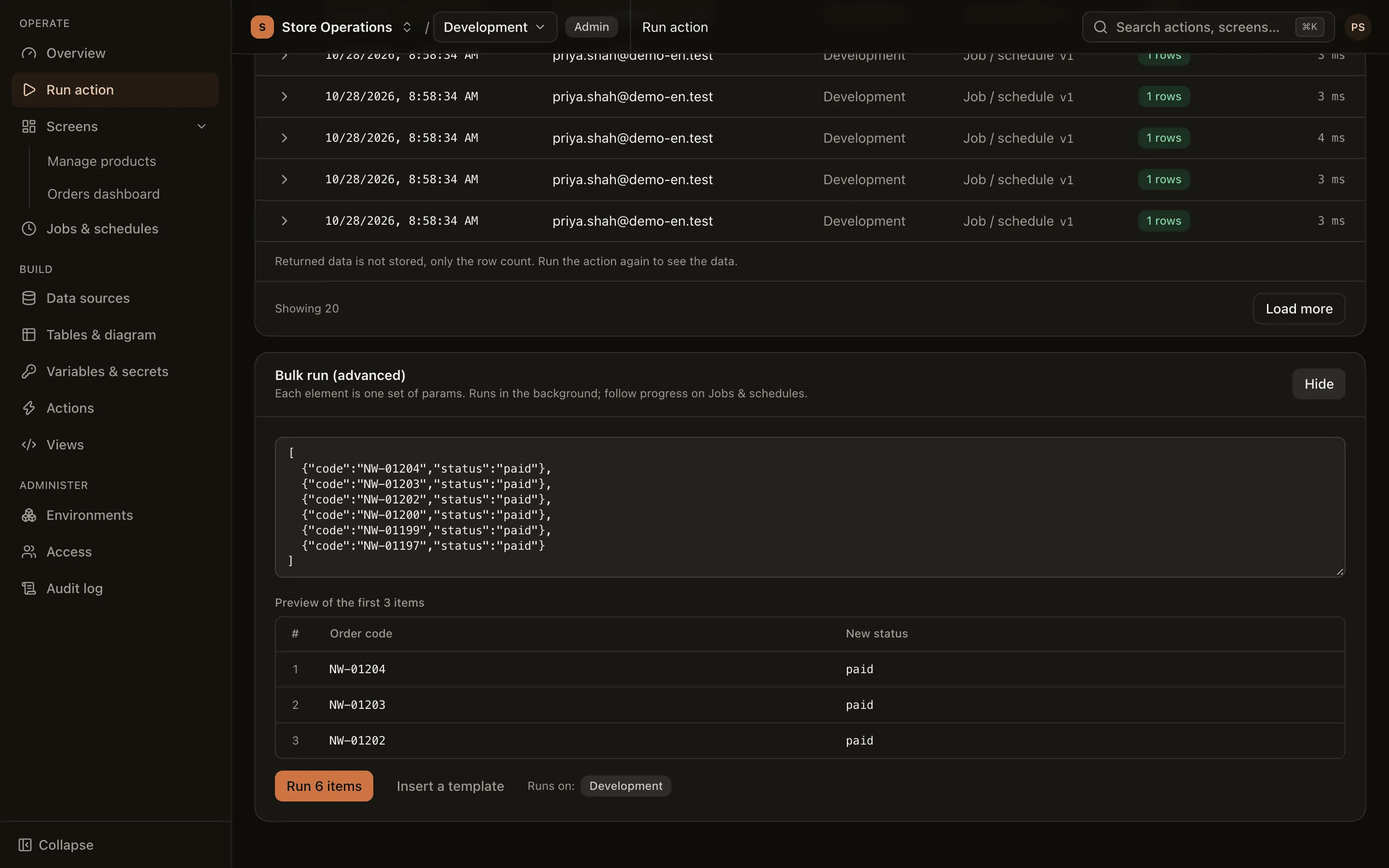
A bulk run accepts up to 10,000 param sets. Items that have already run cannot be undone.
Run history
Section titled “Run history”The action’s Run history is at the bottom of the page, newest first: run time, user, environment, result, duration and Source (Run action, View, JS action, Job / schedule).
- Filter by result (All, Succeeded, Failed, Running), by environment, or select Only mine.
- Viewers see only their own runs; editors and above see every run.
- Expand a row to see the params entered, the error and the run ID. Click Reuse params to fill in the form again. This does not start a run or change the environment.
- Returned data is not stored, only the row count; to see the data again, run the action again. Values of params with names such as
password,token,secret,api_key… are not stored.