Organization and users
Use the Organization admin page to create, edit and delete accounts, hand over initial passwords and manage sign-in sessions.
User accounts belong to the organization, not to a single project. An owner creates an account once, then links the user to the projects they need with the appropriate role.
Required roles
Section titled “Required roles”Owners only. Project admins cannot create accounts; they can only add users who already have an account to their project.
Organization admin page
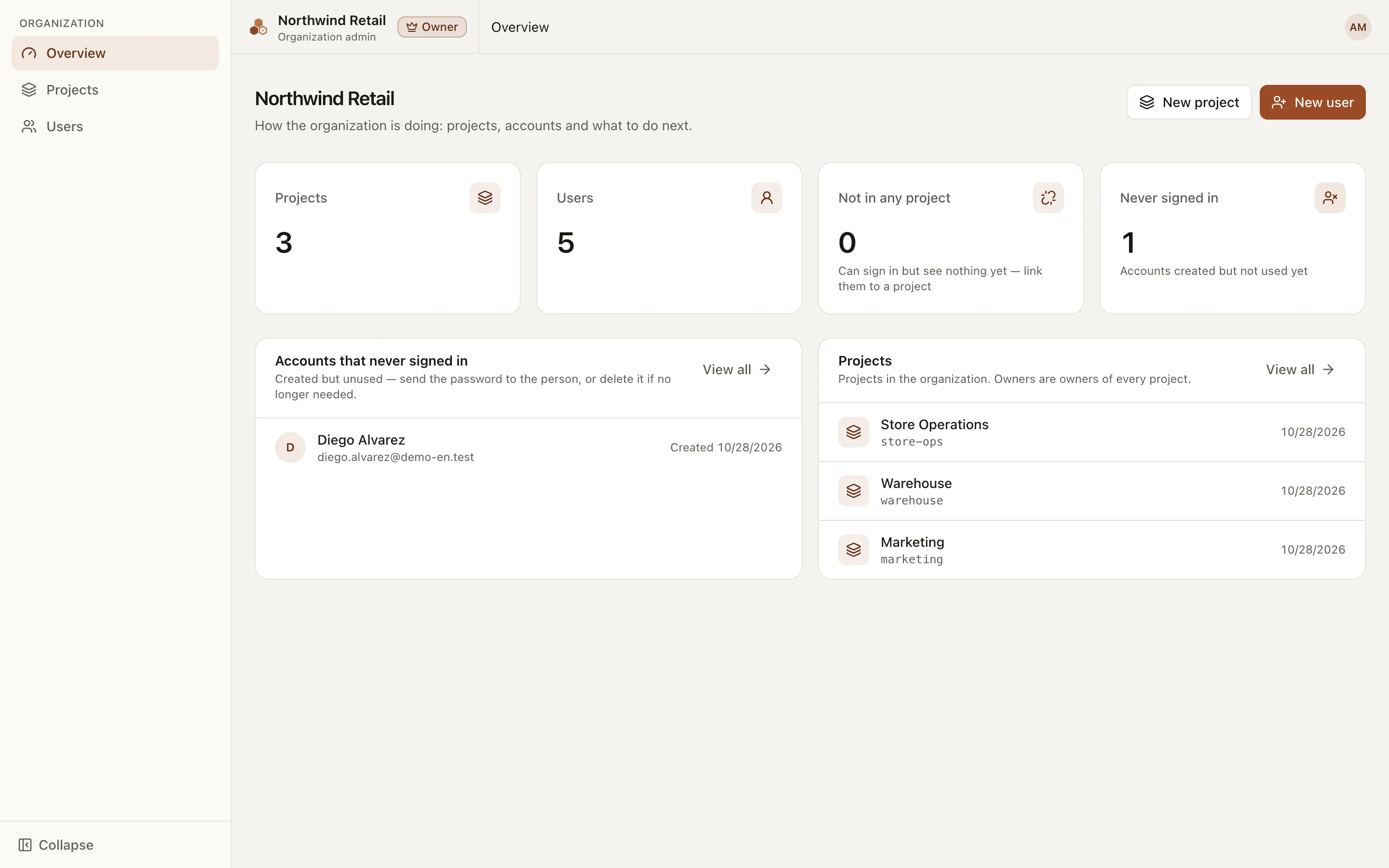
Section titled “Organization admin page”Owners land on Organization admin after signing in, or open it from the project switcher in the top bar. The page has three sections:
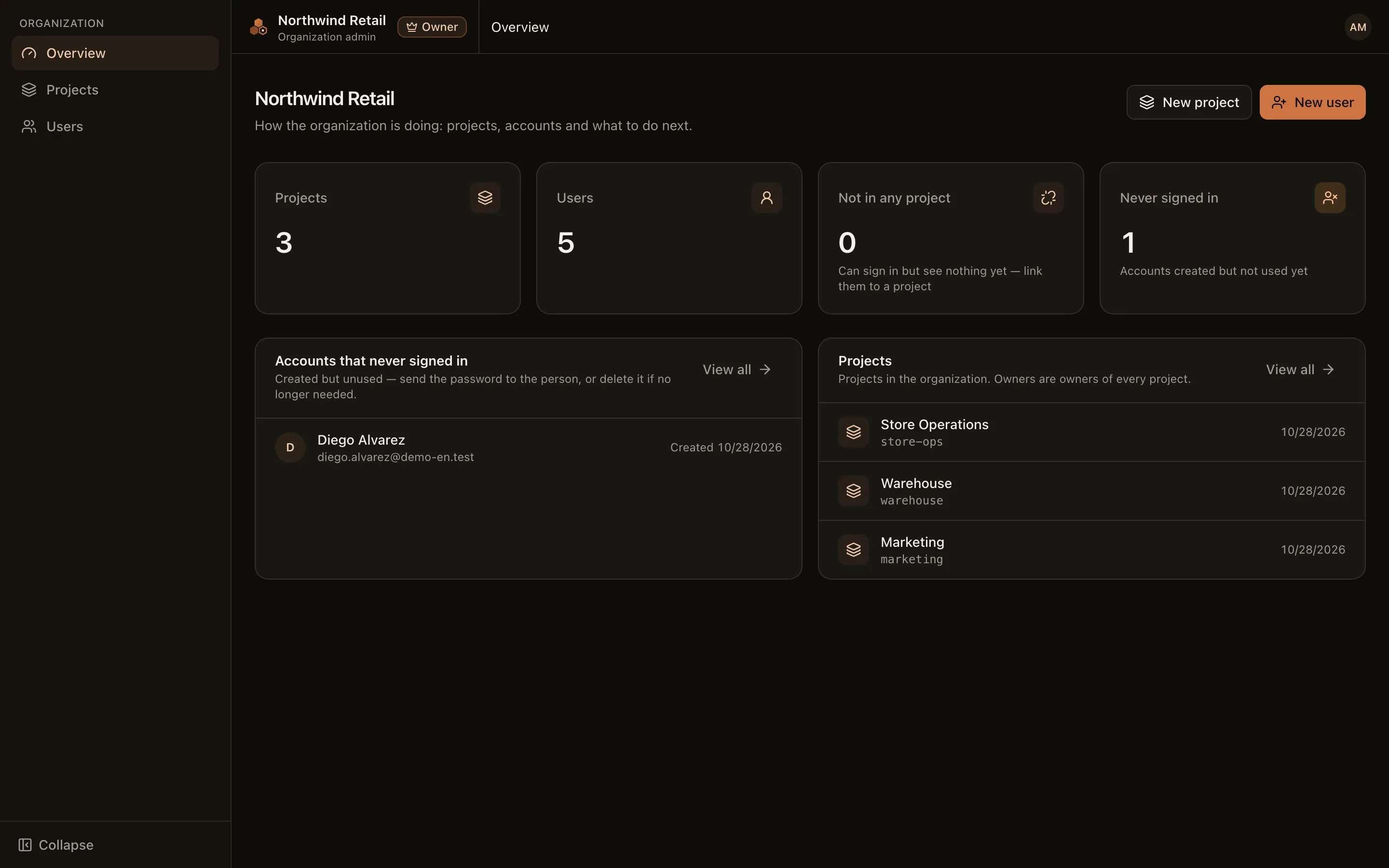
- Overview: four figures, Projects, Users, Not in any project (users who can sign in but do not see any project yet) and Never signed in (accounts created but not used yet). Below them are the list of Accounts that never signed in and the list of projects.
- Projects: every project in the organization. See Projects.
- Users: every account in the organization.
Create a user
Section titled “Create a user”- Go to Users and click New user.
- Enter a Name and an Email.
- Set an Initial password of at least 12 characters. Click Generate to have the system create a strong password.
- Click New user. The Account created dialog shows the Sign-in URL, the email and the password, with Copy buttons.
- Send the sign-in details to the user through a private, secure channel.
- Click Next: link to a project to assign a project role immediately.
A new user can sign in immediately but sees no project until they are linked to one. Use the Not in any project figure to find these accounts.
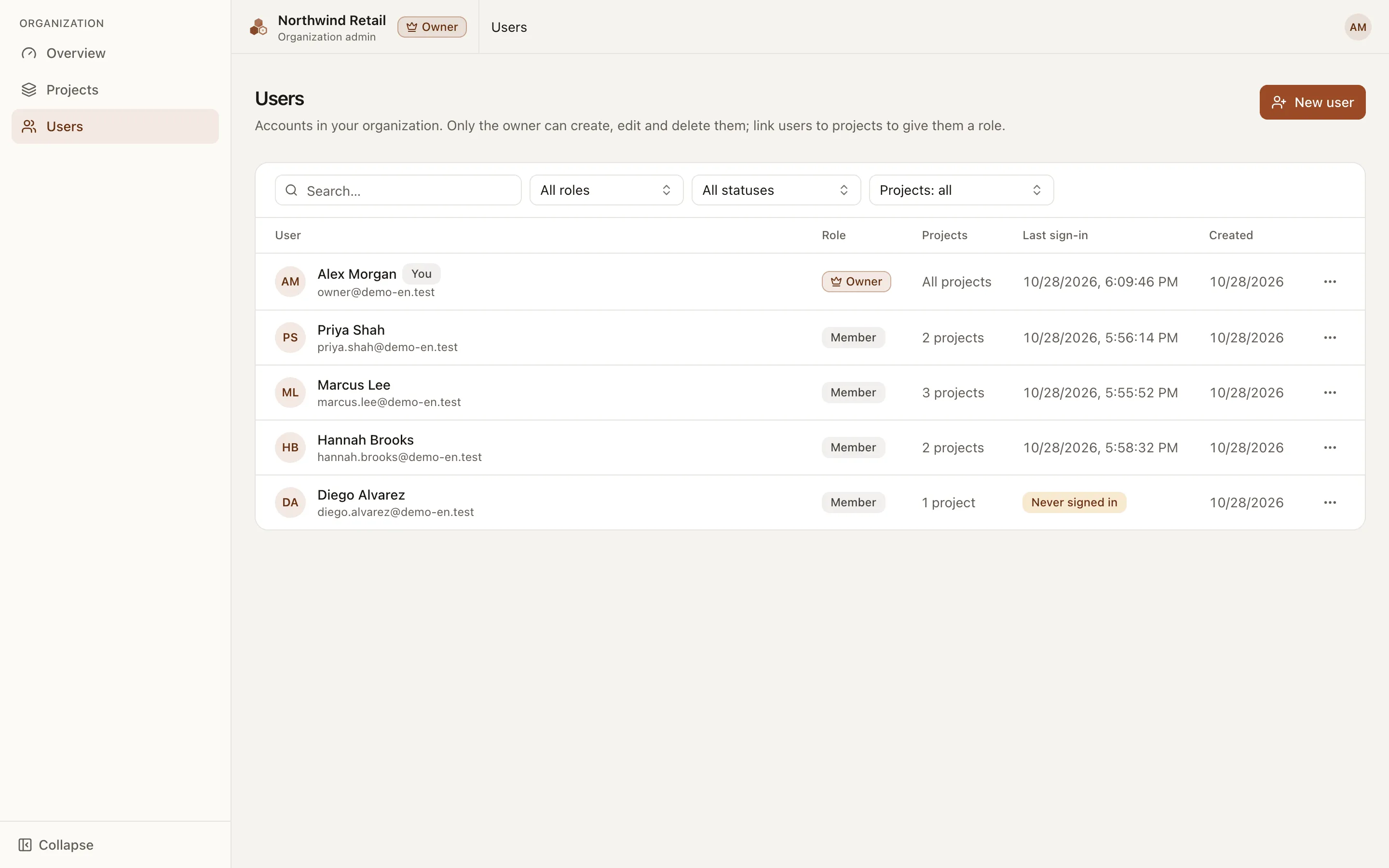
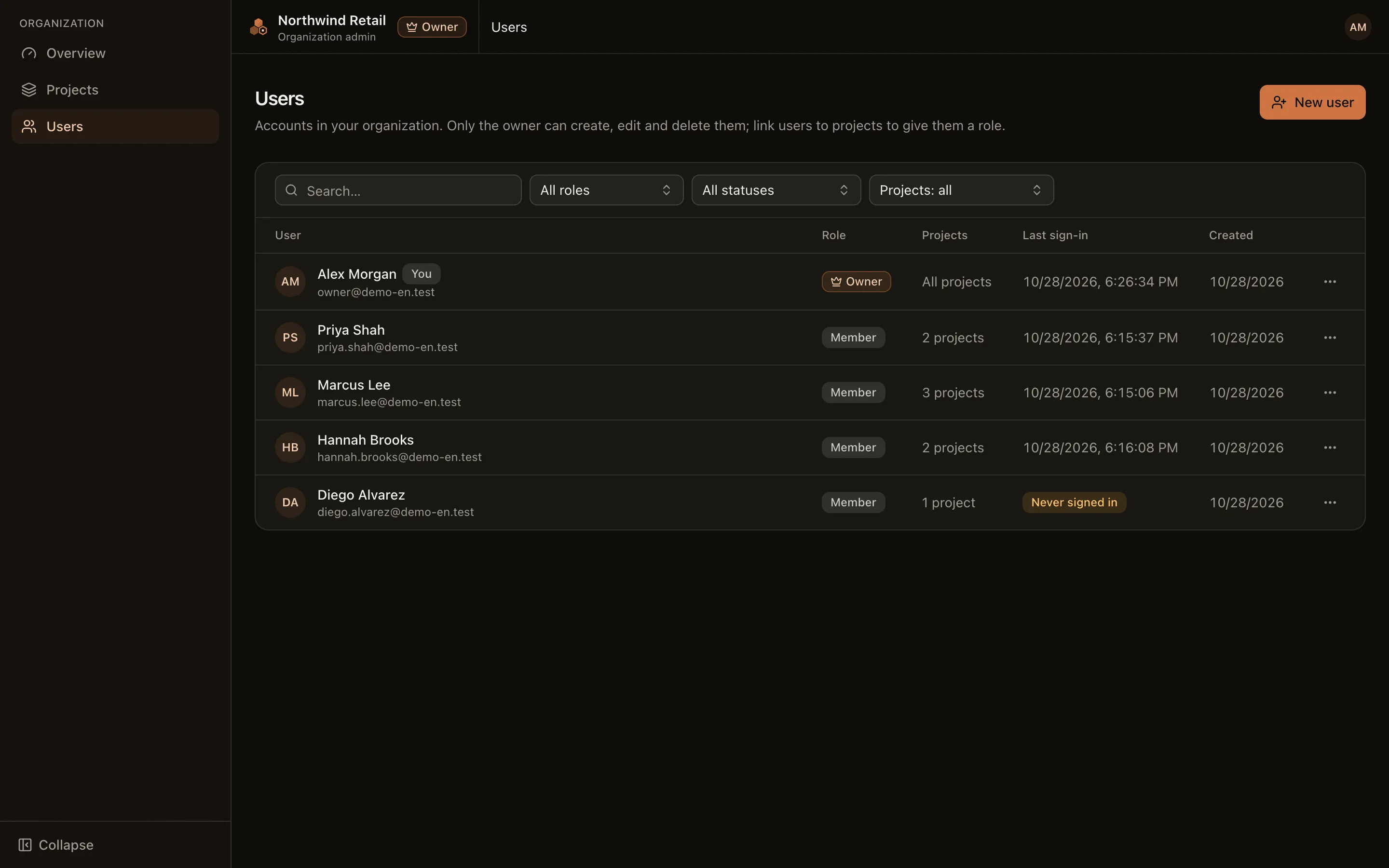
The user list can be filtered by role (Owner / Member), by status (Signed in / Never signed in) and by project (Not in any project / In a project).
User detail page
Section titled “User detail page”Click a user to open their detail page. For a member, the page has three tabs:
- Projects & roles (open by default): the Linked projects and the role in each. The user sees only the projects listed here.
- Link to project: select a project and a role, then click Link.
- Change the role, or Remove from a project. Removal takes effect immediately: direct grants on actions are revoked, schedules that run as the user are disabled, and their unfinished jobs are cancelled.
- Under each project, the Environments block shows which environments the user can enter and with which role. Open environments show “open to every member”. For restricted environments, use Grant access with a Maximum role, or Revoke access. Project admins can enter every environment with no role cap.
- Profile: edit the display name.
- Security: Reset password for the user.
Owners do not need to be linked to projects (they are owners of every project), so an owner’s page has only the Profile and Security tabs. Another owner of the organization cannot be edited or deleted from this page.
Sessions and session revocation
Section titled “Sessions and session revocation”Sessions renew automatically while the user is active. There are three ways to end a user’s sessions:
| Action | Performed by | Result |
|---|---|---|
| Reset password (Security tab) | Owner | The user is signed out on every device. |
| Change password (account menu) | The user | Only the current tab stays signed in; other tabs and devices are signed out. Requires the current password. |
| Delete user | Owner | The user is signed out and can no longer sign in. |
Entering the wrong current password too many times while changing a password locks the form temporarily. The interface shows how many minutes to wait.
A user who forgets their password must ask an owner to use Reset password. There is no self-service password recovery by email.
Delete a user
Section titled “Delete a user”On the detail page, choose Delete user and confirm. When a user is deleted:
- The user is removed from every project, loses every direct grant and is signed out.
- Schedules that run as the user are disabled, and their unfinished jobs are cancelled.
- The audit log and run history are kept for tracing.
Owners cannot delete themselves or another owner.