Environments
Manage a project's environments, including the production flag, IP allowlists, access with role caps, and adding environments such as staging.
Environments keep test data apart from real data within the same project. Each environment has its own data source connections, variables and secrets, IP allowlist and list of users allowed in. Actions, views and schedules are created once for the project, then enabled per environment in their Applies to environments card.
Required roles
Section titled “Required roles”- Select the working environment: every user, among the environments they can enter.
- Add, rename, mark as production, edit the IP allowlist, change access and grant access: project Admins and Owners. The Administer > Environments page is shown only to these roles.
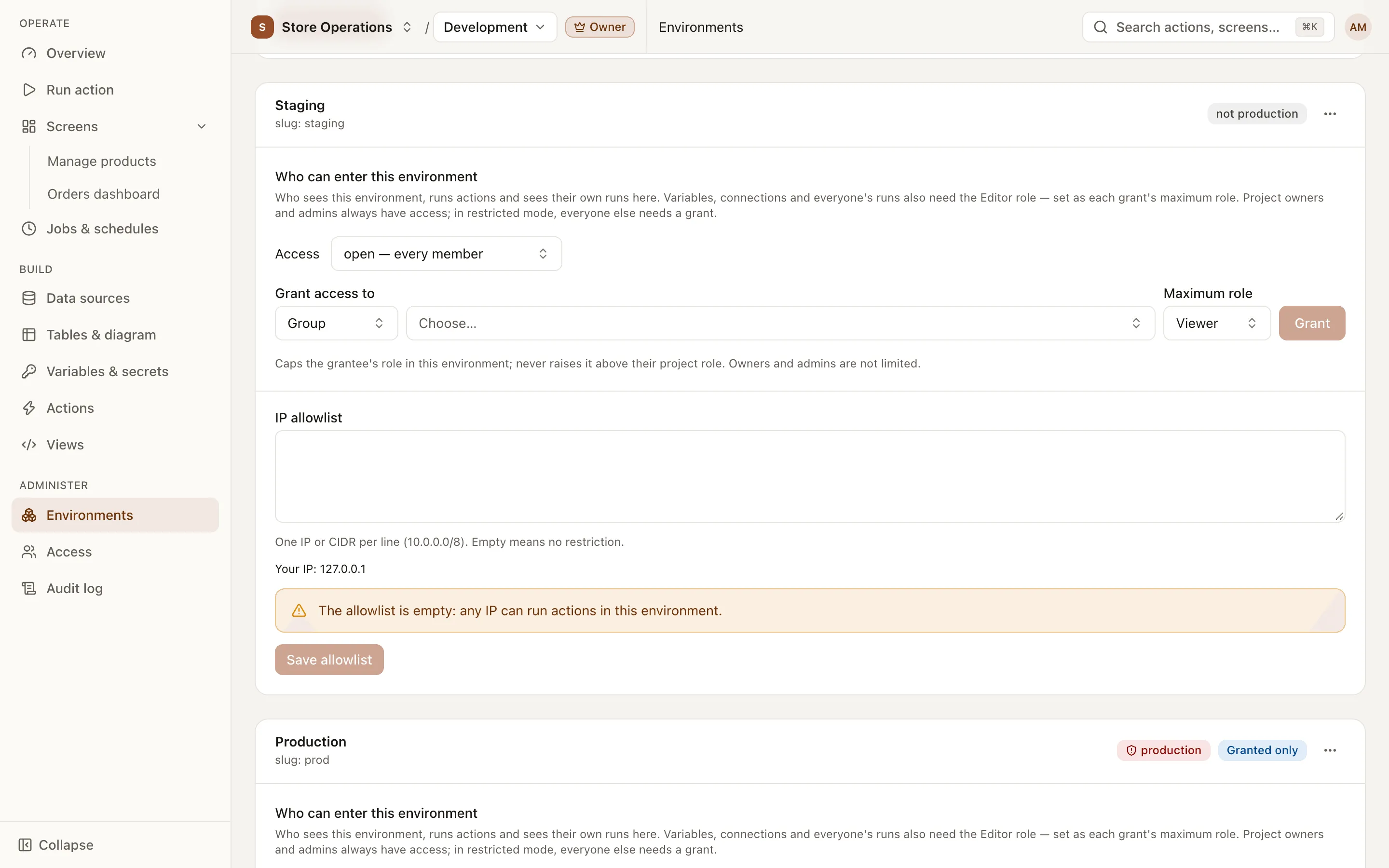
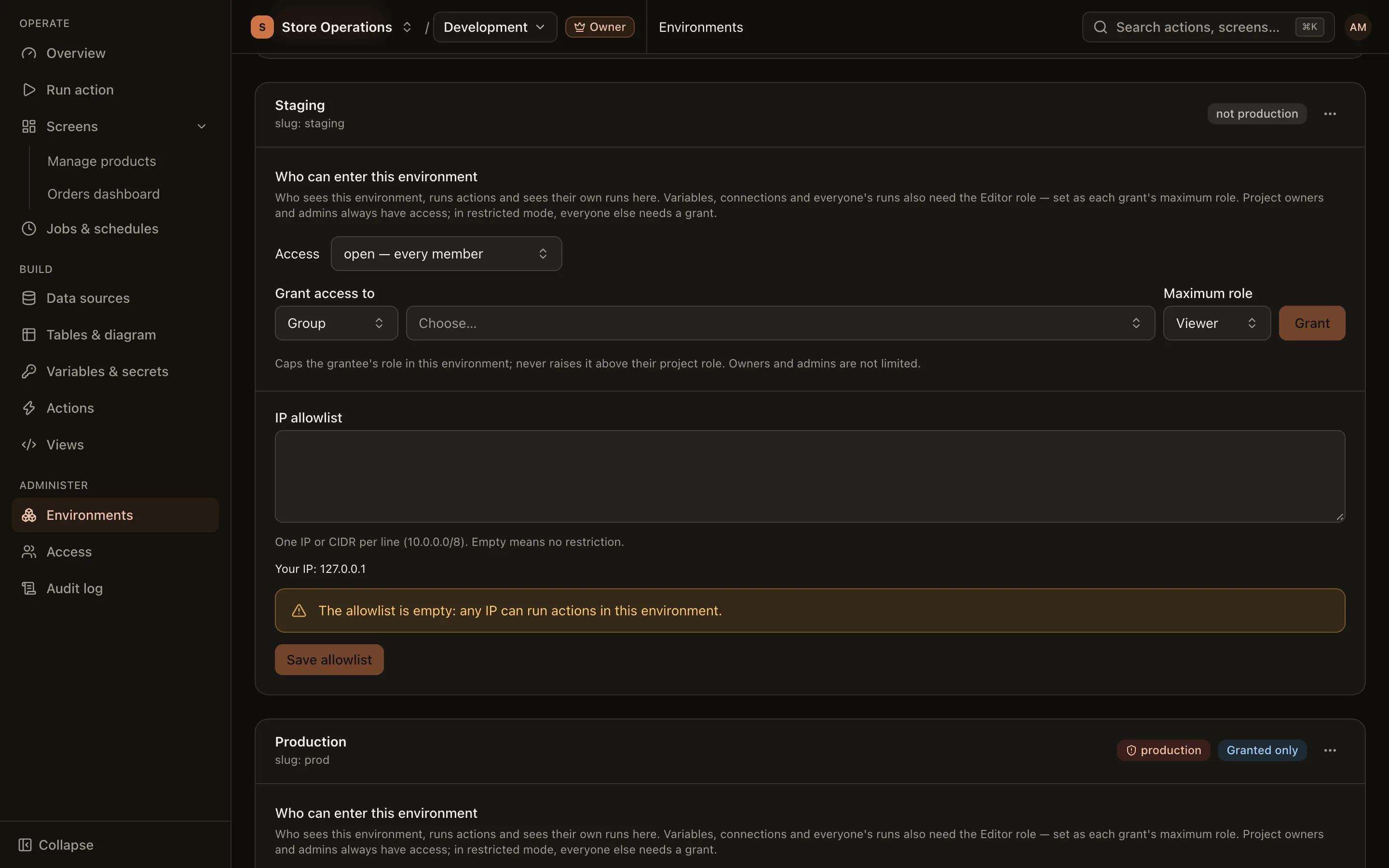
Each environment card shows the name, slug, a production label (if set), a Granted only label when the environment is restricted, the IP allowlist block and the Who can enter this environment block. The … button on the card offers Rename and Mark as production / Unmark production.
Environment switcher
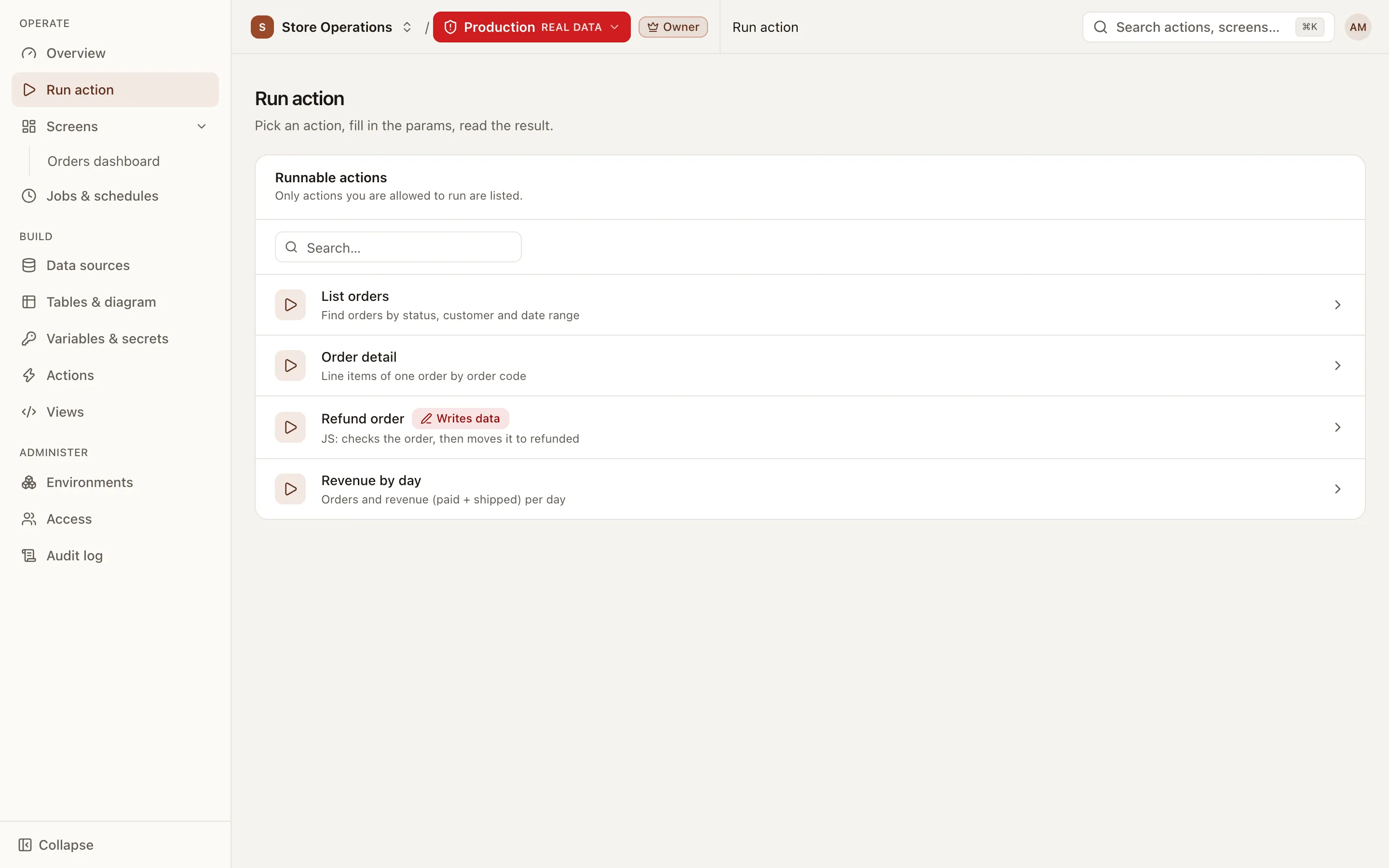
Section titled “Environment switcher”Select the working environment from the top bar. Every page (Run action, Screens, Data sources, Variables & secrets, Jobs…) works on the selected environment. The list contains only the environments the user can enter. If the user’s role in an environment is capped below their project role, the switcher also shows that role (for example · Viewer).
When a production environment is selected, the switcher turns red and shows a REAL DATA label. Writing data, publishing and enabling schedules all ask for confirmation.
Add an environment (for example staging)
Section titled “Add an environment (for example staging)”- Go to Administer > Environments and click New environment.
- Enter a Name (for example
Staging) and a Slug (for examplestaging). The slug cannot be changed after creation, because actions, views and schedules reference their environments by slug. - Select This is production if the environment holds real data.
- Click Create.
A new environment starts with no configuration: it is not enabled for any existing action, view or schedule, and it has no data source connection, variables or secrets. The confirmation that follows offers these shortcuts:
- Switch to staging, go to Data sources: enter connections for the new environment. See Data sources.
- Switch to staging, go to Variables & secrets: set per-environment values. See Variables and secrets.
- Enable actions for staging: existing actions do not pick up new environments automatically. Enable the environment in each action’s Applies to environments card.
If the new environment is production, it is not selected automatically. Select it in the environment switcher when you are ready to configure it.
Production flag
Section titled “Production flag”An environment marked as production behaves as follows:
- Every page shows a red warning while the environment is selected.
- Running write actions asks for confirmation. Publishing and enabling schedules show a confirmation that states this is real data.
- New actions, views and schedules are not enabled there automatically. Enabling them in production is a separate step that requires confirmation.
- A new production environment is created restricted: only owners and admins can enter until access is granted to others.
Change the flag with … > Mark as production or Unmark production.
IP allowlist
Section titled “IP allowlist”The IP allowlist limits which IP addresses can run actions in this environment. An empty allowlist means no restriction.
- In the environment’s IP allowlist block, enter one IP address or CIDR range per line, for example
10.0.0.0/8. - The page shows Your IP and whether it is on the new list. Click Add my IP to add it to the list.
- Click Save allowlist, review the added and removed lines in the confirmation dialog, and confirm.
- The server refuses to save if the current IP of the user saving the list is not on the new list. This prevents users from locking themselves out.
- As soon as the list is saved, runs from an IP outside the list are blocked with the message “Your IP is not on the allowlist.”
Who can enter this environment
Section titled “Who can enter this environment”The Who can enter this environment block controls who sees the environment, runs actions and sees their own runs there.
| Access | Meaning |
|---|---|
open — every member | Every project member can enter, with their project role. |
restricted — only those granted | Only owners, project admins and the members or groups granted access can enter. |
Owners and project admins always have access to every environment.
Grant access to a restricted environment
Section titled “Grant access to a restricted environment”- In the Who can enter this environment block, under Grant access to, select the type (Member or Group) and the person or group.
- Select a Maximum role:
viewer(run actions, see only their own runs) oreditor(also variables and secrets, connections, everyone’s runs, view preview and schedules in this environment). - Click Grant.
The maximum role only lowers a role. It never raises it above the person’s project role. See “Role caps per environment” on the Roles page.
Owners can also grant environment access per person from the user’s detail page. See Organization and users.
Revoke access and change the mode
Section titled “Revoke access and change the mode”- Revoke a person’s or group’s access: they no longer see the environment (unless they still have access through another group). Schedules that run as them and use this environment are turned off, and their unfinished jobs there are cancelled. Granting access again does not turn the schedules back on.
- Switch from open to restricted: members without a grant no longer see the environment. If the grant list is empty, only owners and admins keep access, so grant access before switching.
- Switch from restricted to open: every member can enter and run the actions enabled there (still subject to each action’s permissions). Maximum roles on existing grants no longer apply.