Quickstart
From an empty project to your first action run, following the six-step checklist on the Overview page.
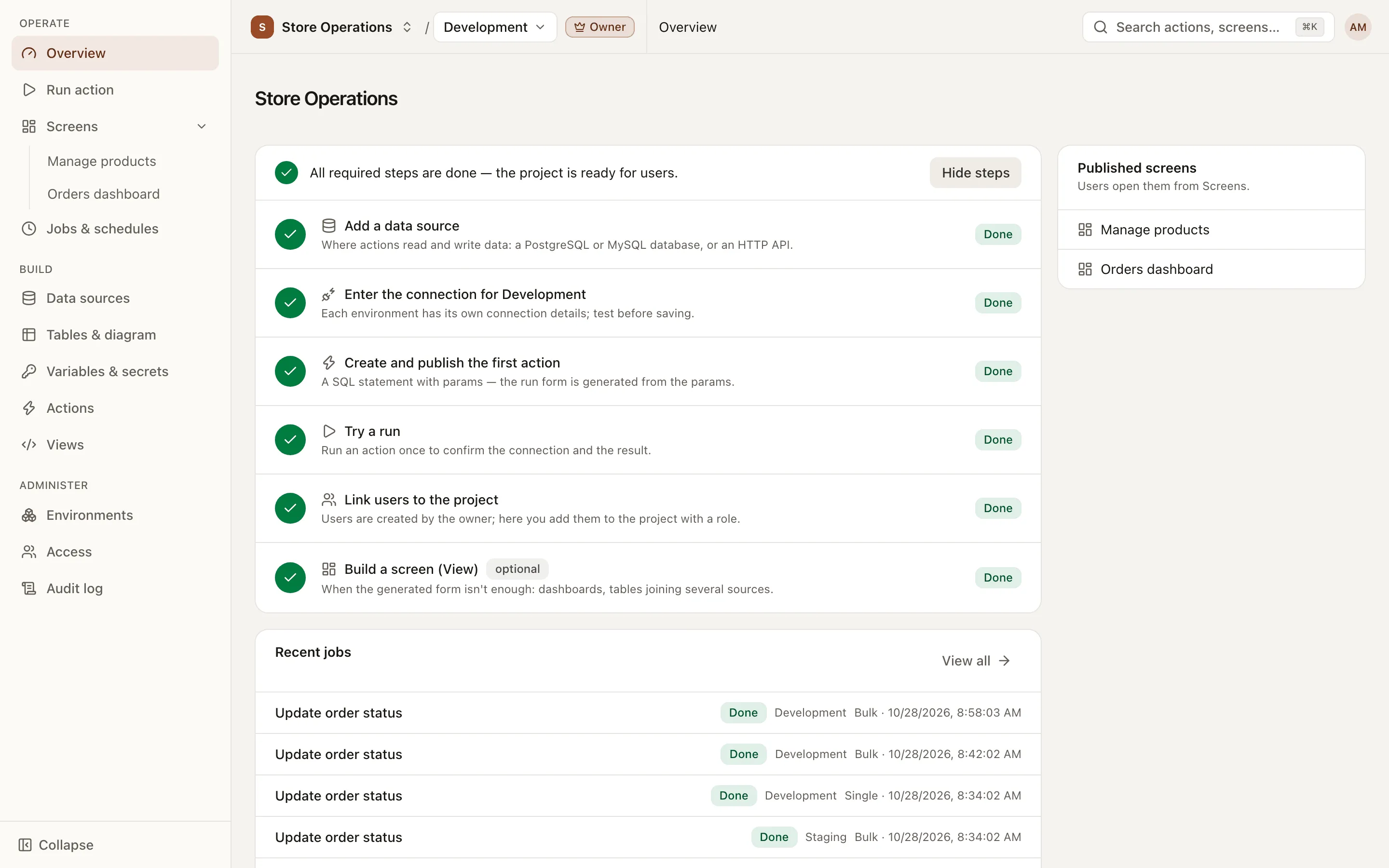
Every project’s Overview page has a Project setup card with six steps, listed in the order they are performed. Each step is marked Done automatically from the project’s real data and has a button that opens the relevant screen. This page describes each step in turn.
Prerequisites
Section titled “Prerequisites”- An account created by the organization’s Owner. There is no self sign-up.
- The Overview page requires the Editor role or higher. Viewers are taken directly to the Run action page after sign-in.
- Some steps require the Admin role. The checklist shows Needs Admin on steps that the current user cannot perform.
- A step that depends on an earlier step is locked and shows After step N until that step is done.
Step 0: Create a project (Owner)
Section titled “Step 0: Create a project (Owner)”- Sign in as an owner. The Organization admin page opens with three sections: Overview, Projects and Users.
- Click New project and enter a Name and a Slug. The slug can contain only lowercase letters, digits and hyphens, and cannot be changed after creation.
- The system creates the project with two environments,
dev(Development) andprod(Production), and opens the project’s Overview page.
The default environment is dev. Change it with the switcher in the top bar. For details, see Projects.
Six setup steps
Section titled “Six setup steps”-
Add a data source (Admin role).
Go to Build > Data sources > New data source. Enter a Name and Slug, pick a Kind (PostgreSQL, MySQL or HTTP API) and click Create. The data source’s detail page opens. To create runnable actions, pick PostgreSQL or MySQL; HTTP data sources currently only store configuration and support a connection test. See Data sources.
-
Enter the connection for the selected environment (Admin role).
In the Config per environment card, fill in Host, Port, Database, User, Password and SSL/TLS. Click Test the config as typed to test the connection, then click Save config and confirm with Save to Development. Each environment stores its own connection. To run in
prod, switch toprodin the top bar and save the config again. -
Create and publish the first action (Editor role).
Go to Build > Actions > New action. Enter a Name and Slug, pick Kind SQL, choose the data source, set Mode to Read-only and click Create. On the Definition tab, write SQL with params like
{{paramName}}:SELECT id, customer, status, totalFROM ordersWHERE status = {{status}}ORDER BY idIn the Params section, click Add a param, name it
statusand give it typestring. Click Save draft, then Publish. See Actions. -
Try a run (Editor role).
After publishing, the action page shows a Try a run button. It opens the Run action page with a form generated from the params. Enter
status, click Run and check the result table. See Run actions. -
Link users to the project (Admin role; only admins see this step).
The owner creates the account under Users > New user. A project admin then adds that person under Administer > Access > Add member with the
admin,editororviewerrole. See Organization and users and Access control. -
Build a screen (View) (optional, Editor role).
When the generated form is not sufficient (dashboards, tables that combine several sources), go to Build > Views > New view. See Views.
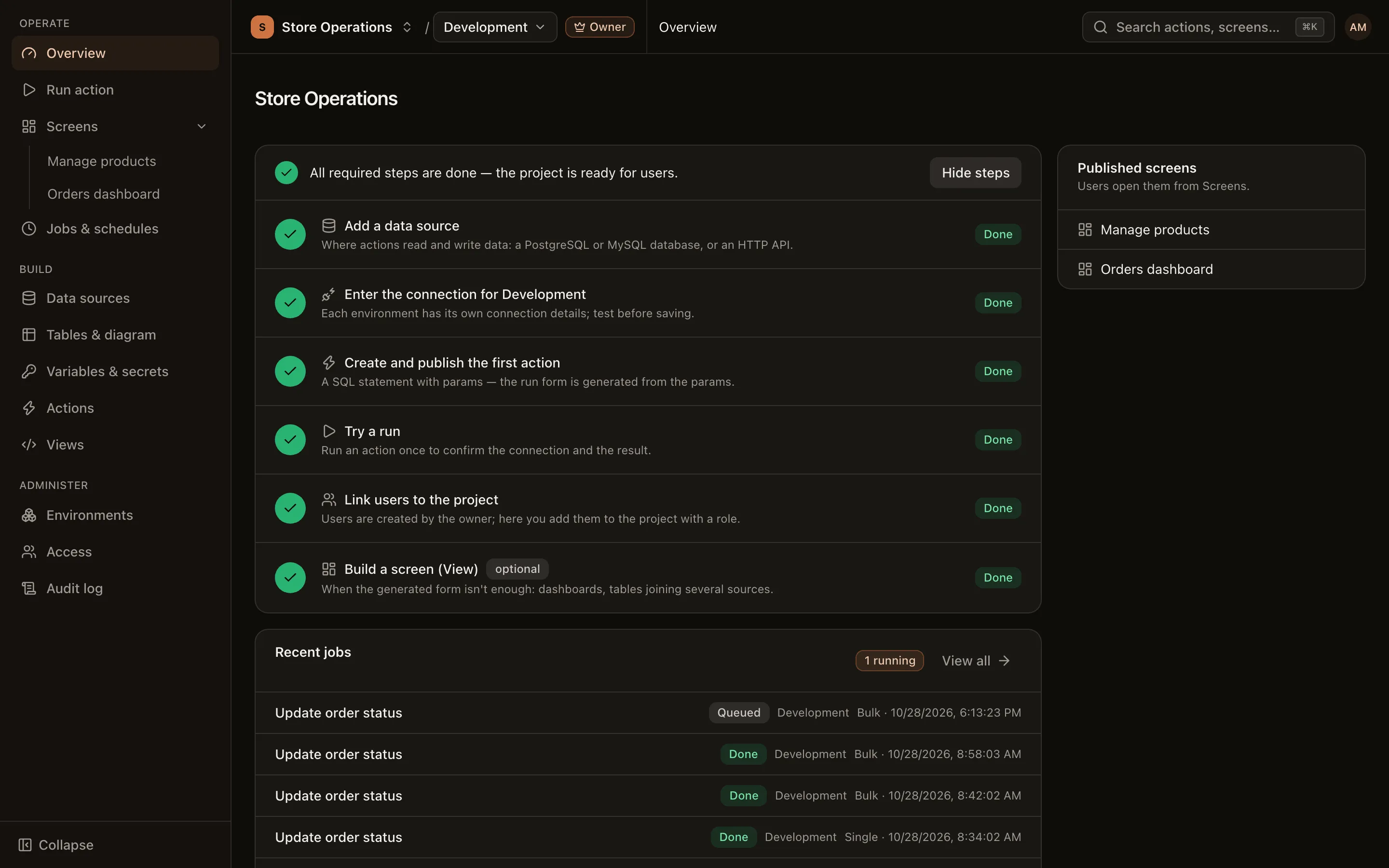
When every required step is done, the checklist collapses to a single line (reopen it with Show steps). The Overview page then shows the everyday cards: Quick run, Recent jobs and Published screens.
- Publishing is blocked if the SQL uses a param that is not declared, or if a declared param is not used.
- Drafts cannot run. The Run action page always runs the published version.
- New actions apply to every environment except production. To run in
prod, enable that environment in the action’s Applies to environments card (with a confirmation step). - If every published action is granted-only and the current user has not been granted any of them, the Try a run step becomes Grant run access and requires an admin.