Screens
Open published views under Screens. A view runs in an isolated frame, with the viewer's permissions, and only in the environments it is enabled in.
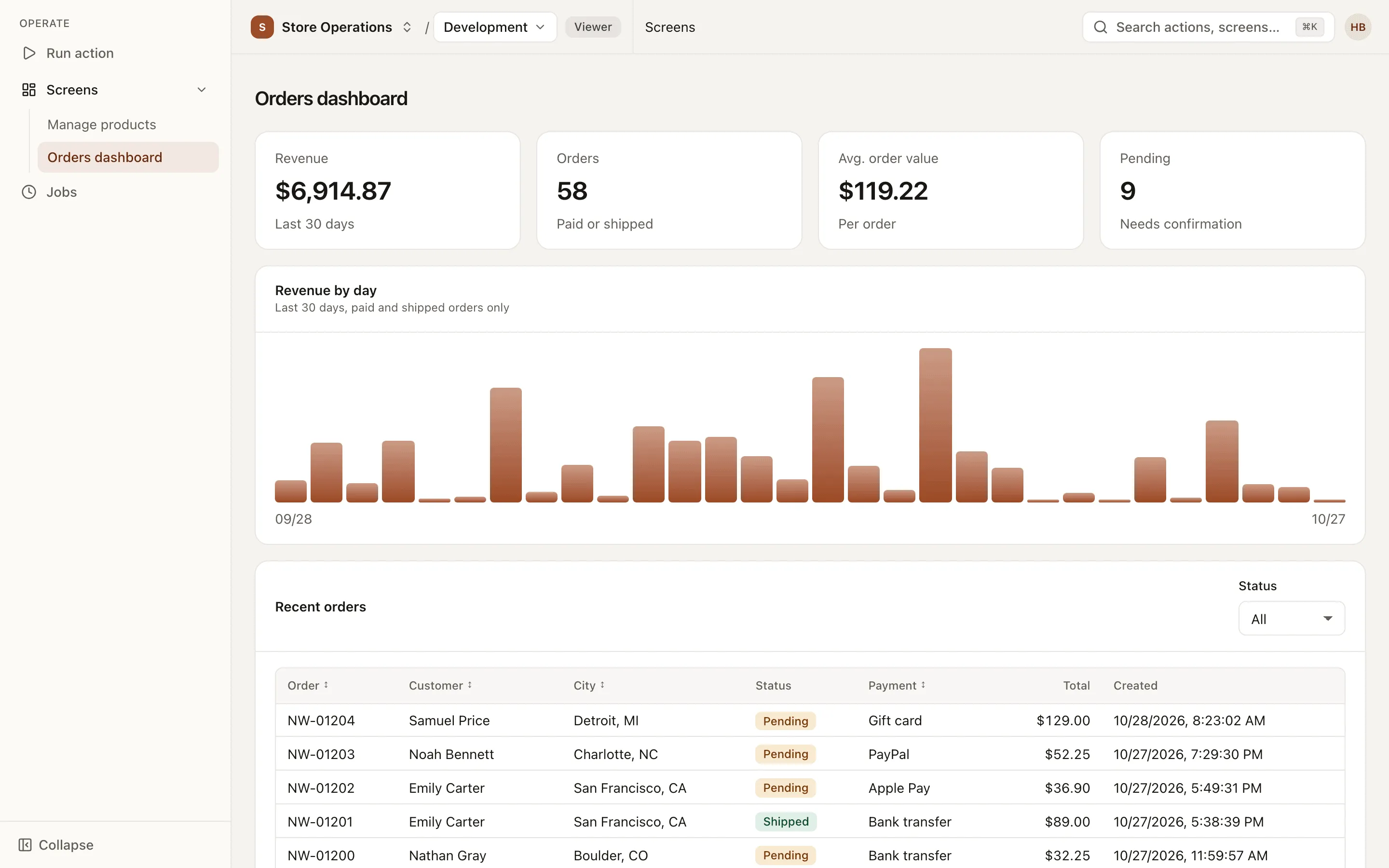
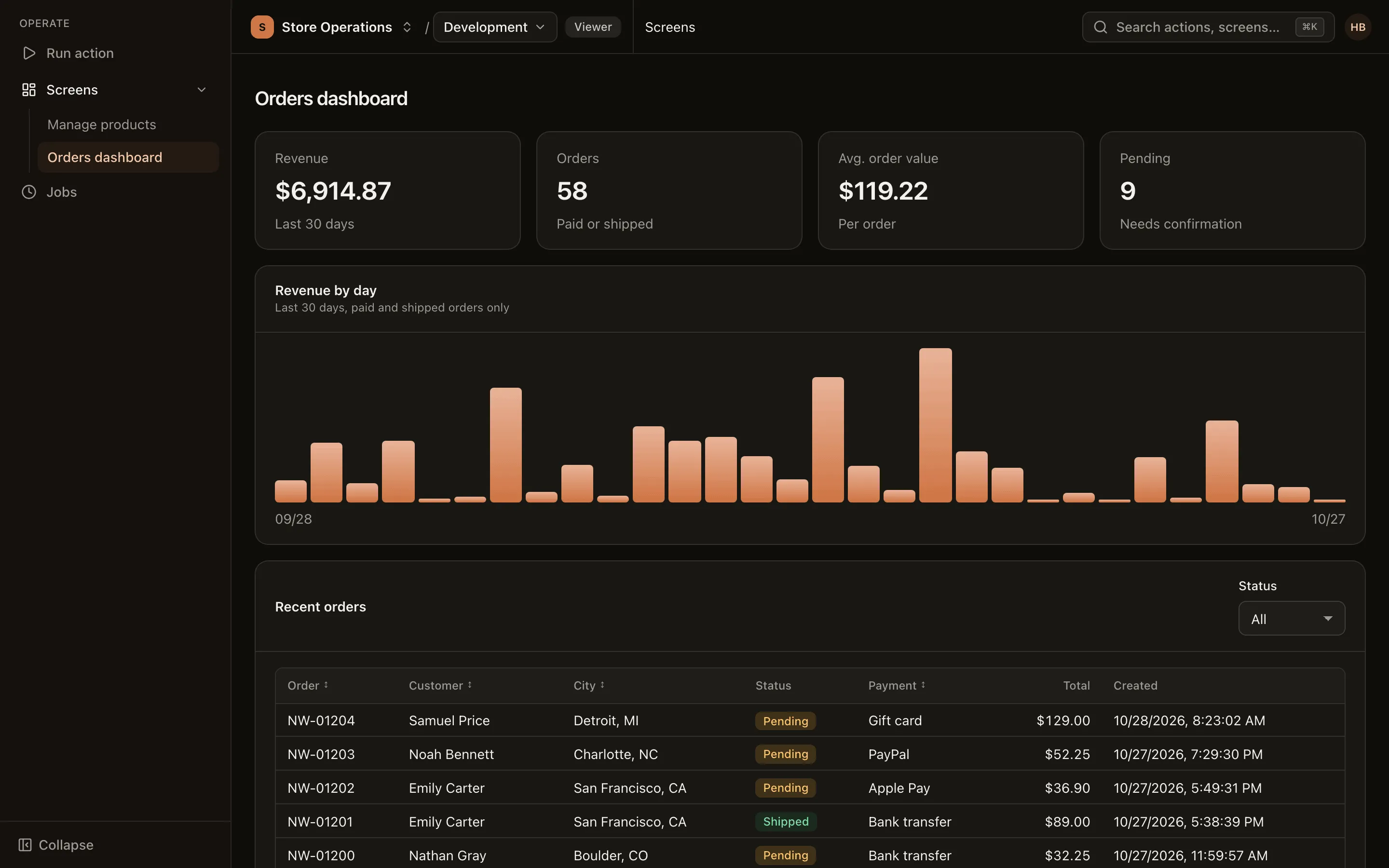
Screens are published views for end users, for example dashboards, lookup tables or a management screen for a table. Users work with a screen like any other page; behind the scenes, each operation is an action run.
Required roles
Section titled “Required roles”Every role, from Viewer up. For a screen to show data, the viewer needs permission to run the actions that the view calls.
Open a screen
Section titled “Open a screen”- Select the environment in the top bar.
- In the menu, expand Operate > Screens to see the list of screens, then click the screen you need. You can also type the screen’s name into the Search actions, screens… box in the top bar.
- The screen opens in the page. All data shown is fetched through actions, in the selected environment.
Screens in the list
Section titled “Screens in the list”- The list contains only views that are published and enabled in the selected environment. Switching environments may change the list.
- A view whose actions the viewer cannot run at all is hidden from the list.
- If you open a screen that is not enabled in the current environment, the page shows This screen isn’t applied in…. Switch to another environment, or ask an editor to enable the screen.
How screens run
Section titled “How screens run”- A screen runs with the permissions of the user viewing it, not those of the view’s author. Publishing a view grants no permissions to anyone.
- A view runs in an isolated frame, separate from the admin pages. It cannot read the user’s session, cannot access external networks, and can run only the actions it declares.
- Every run is recorded, with View as the source in the action’s run history.
- Write actions in a view usually ask for confirmation before running (for example a delete button on a row).
Troubleshooting
Section titled “Troubleshooting”- Error in the view: the page shows an error message. Report it to a project editor, with the screen’s name.
- The view is not responding (it may be stuck in a loop): click Reload.
- If a view calls more than 20 actions within 10 seconds, the extra calls are refused until the rate drops.
Editors and above see an Edit view button that opens the view directly in the editor.