Connect a data source
Add a PostgreSQL, MySQL or HTTP API data source, enter a separate connection for each environment and test it before use.
A data source is where actions read and write data: a PostgreSQL or MySQL database, or an HTTP API. Each data source has a separate connection for each environment. As a result, the same action runs against the dev database in the dev environment and against the production database after you switch to prod.
Required roles
Section titled “Required roles”- Admin and above: add data sources, enter and edit connections, delete data sources.
- Editor: view the list, view the configuration (without the password) and browse tables and columns. Editors who need a new data source contact a project admin.
For details, see Roles.
Create a data source
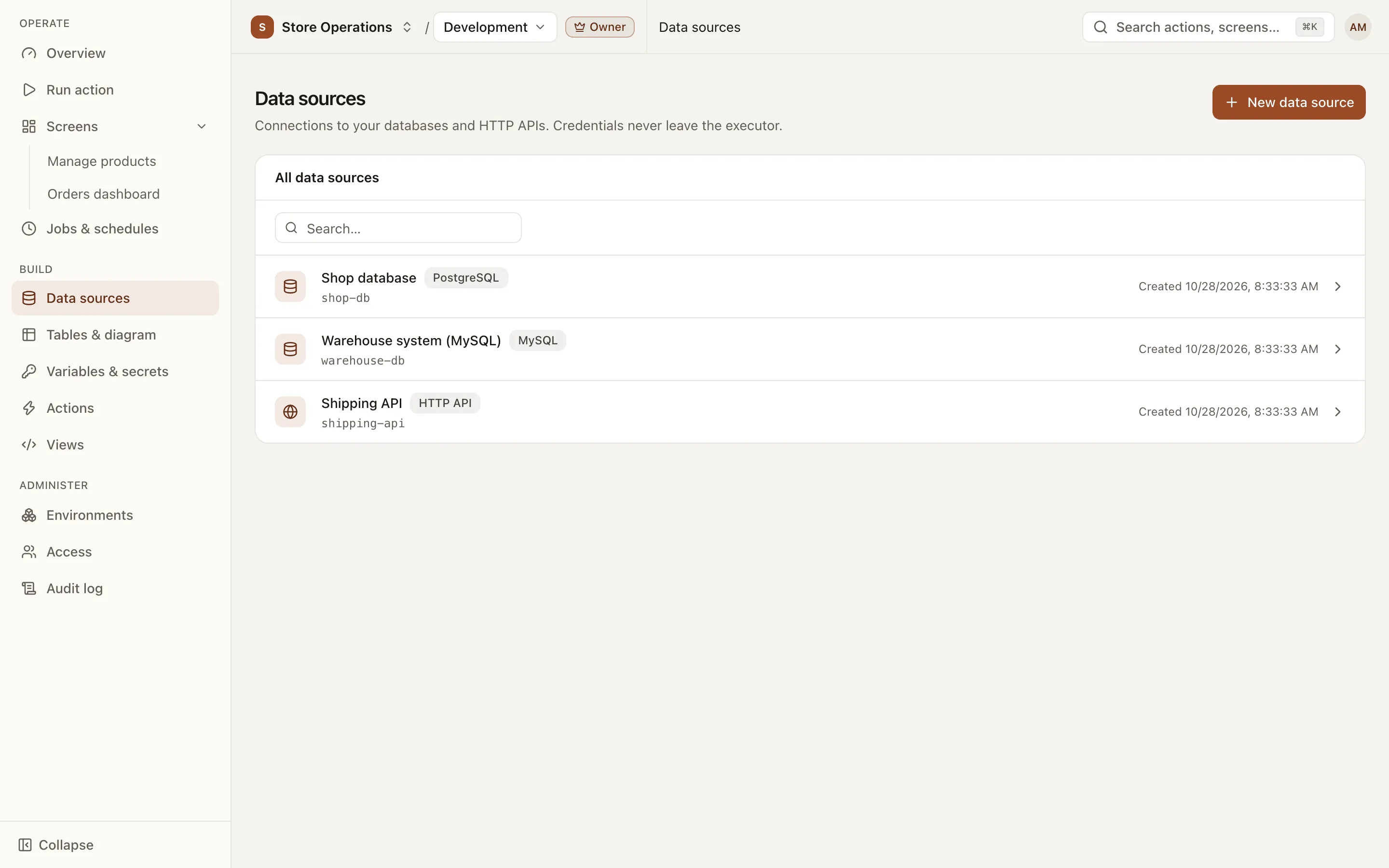
Section titled “Create a data source”- Go to Build > Data sources and click New data source.
- Enter a Name and Slug, then select the Kind: PostgreSQL, MySQL or HTTP API.
- Click Create. The detail page opens, where you enter the connection for each environment.
Enter the connection for each environment
Section titled “Enter the connection for each environment”A connection is always entered for the environment selected in the top bar. To add a connection for prod, switch to prod and save again. Each environment keeps its own config, stored encrypted.
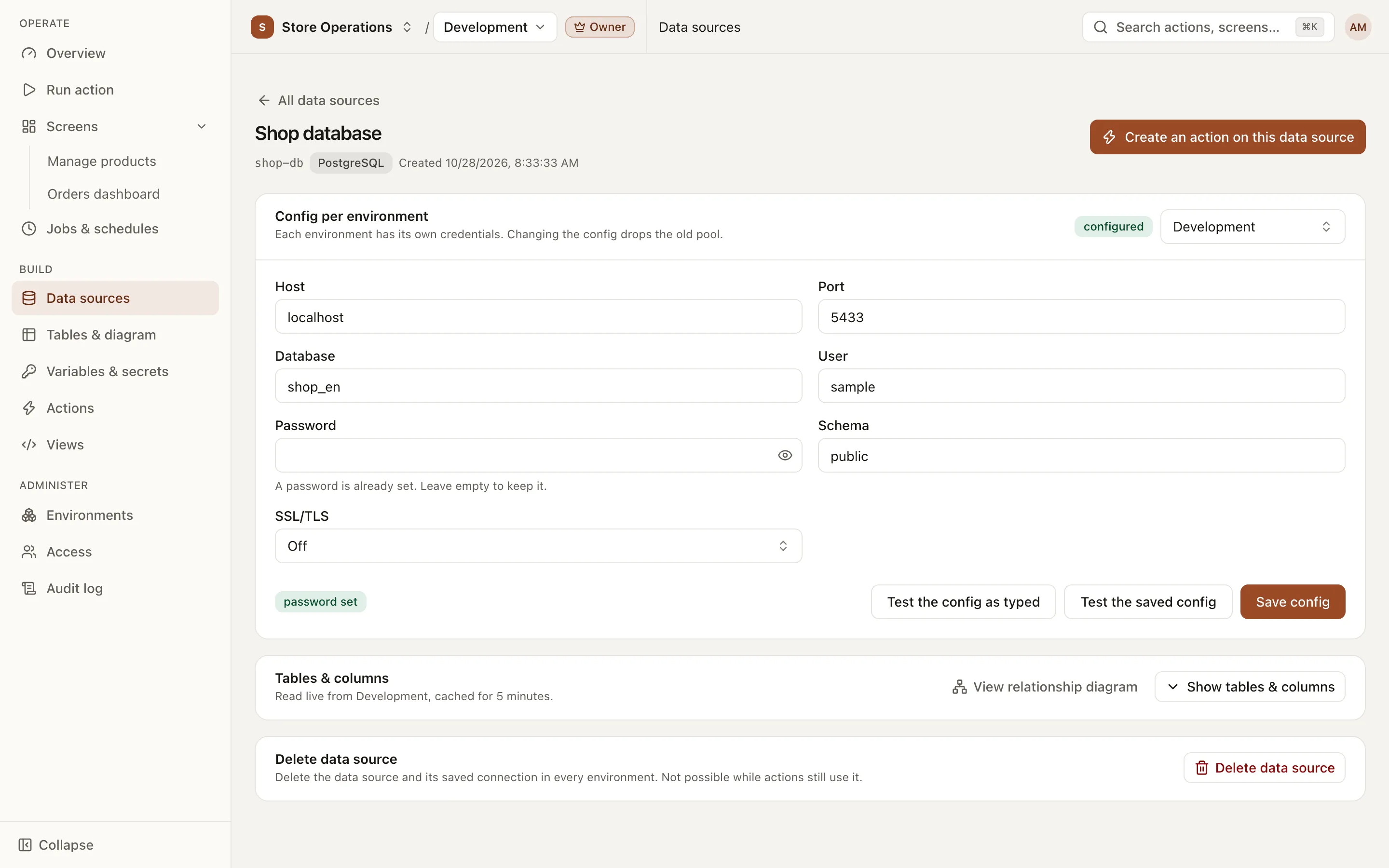
- In the Config per environment card, enter Host, Port, Database, User, Password and Schema (default
public). - Select SSL/TLS: Off, On, verify the certificate (recommended) or On, do not verify the certificate. If the database uses its own CA, see SSL/TLS below.
- Click Test the config as typed to test the values you entered. If the connection succeeds, the page shows the database version and response time.
- Click Save config, then confirm with Save to environment name.
- Repeat for the other environments (switch environment in the top bar first).
The steps are the same as for PostgreSQL, with these differences:
- MySQL 8.0 or later is supported.
- There is no Schema field: in MySQL, the database is the schema.
- There is no Server name in the certificate field: MySQL always checks the server certificate against the Host, so the host must be a name listed in the certificate.
- Each action on MySQL can contain only one statement and cannot include transaction control statements (
BEGIN,COMMIT…). The platform opens and closes the transaction. See Create an action. - A client certificate is used when the MySQL user is declared with
REQUIRE X509/SUBJECT.
- In the HTTP config per environment card, enter the Base URL. Do not put a username or password in the URL; send credentials in a header.
- Enter the Allowed hosts (required), one host per line.
*.example.commatches subdomains but does not matchexample.com. - Optionally, enter Allowed path prefixes, one per line, each starting with
/. If empty, any path is allowed. - If the API requires a token, enter Fixed header — name and Header — value. The header value is treated as a secret and cannot be read back after it is saved. If both fields are left empty, the saved header is kept; saving a new header replaces all existing headers.
- Click Save config and confirm, then click Test the saved config.
No action kind uses an HTTP data source yet. An HTTP data source can store config per environment and test the connection; SQL actions run only on PostgreSQL and MySQL.
SSL/TLS and PEM certificates
Section titled “SSL/TLS and PEM certificates”Cloud databases usually require TLS and use their own CA (RDS, Cloud SQL, an internal CA). When you select On, verify the certificate (recommended), the TLS section appears:
- CA (PEM): the CA certificate used to verify the server, for example your provider’s global bundle. Several certificates can be concatenated (a CA bundle). Load it with Choose file or Paste PEM.
- Server name in the certificate (PostgreSQL only): enter a value when the host is an IP address or differs from the name in the certificate. If empty, the host is used.
- Client certificate (PEM) and Private key (PEM): required only when the server requires a client certificate (mTLS, for example
pg_hba … cert). Enter both together; the private key must not have a passphrase.
After saving, certificates are shown only as a summary (CN and expiry date, shown in red after expiry). The private key is never displayed again. Fields you do not change keep their saved values. Click Remove to remove a certificate, or Keep saved to discard a change to that field. Saving is refused if a PEM cannot be read, a certificate has expired, or the private key does not match the client certificate.
- Passwords are never sent back to the browser. The Password field only shows whether a password is set; leave it empty to keep the current one.
- Saving a config takes effect immediately. Every action in that environment uses the new connection; queries that have been running for more than a few seconds may be cut off. When you edit the config of a production environment, the page warns that these credentials are used against real data.
- The Tables & columns card on the data source page shows the database structure (cached for 5 minutes). To view the relationship diagram or generate CRUD actions, go to Tables & diagram.
- Create an action on this data source (PostgreSQL and MySQL only) opens the action form with this data source preselected.
Delete a data source
Section titled “Delete a data source”The Delete data source card is at the bottom of the detail page (Admin role required). Deleting a data source permanently removes its config in every environment, including passwords, headers and certificates. This operation cannot be undone.
A data source cannot be deleted while actions still use it. The confirmation dialog lists each action that uses it; remove those actions or move them to another data source first.
See also
Section titled “See also”- Tables & diagram: browse tables and relationships, and generate CRUD actions.
- Variables & secrets: per-environment values you can use in SQL.
- Environments: add environments and mark production.