Generated CRUD actions
Generate list, get, create, update and delete actions for a table, optionally with a view, then review and publish them.
The platform generates five CRUD actions for a table from its structure, so you do not have to hand-write five nearly identical SQL statements. Every value in the generated SQL is a bound param, and table and column names are quoted with the correct syntax for PostgreSQL or MySQL.
Required roles
Section titled “Required roles”You need the Editor role or above in the selected environment, and the SQL data source must have a config in that environment. The Choose people and groups mode (selecting the people and groups who can run the actions) requires the Admin role.
Generate actions from a table
Section titled “Generate actions from a table”- Go to Build > Tables & diagram and select the data source.
- Click Create CRUD actions on the table, either in the Tables tab or on the table’s box in the Relationship diagram tab.
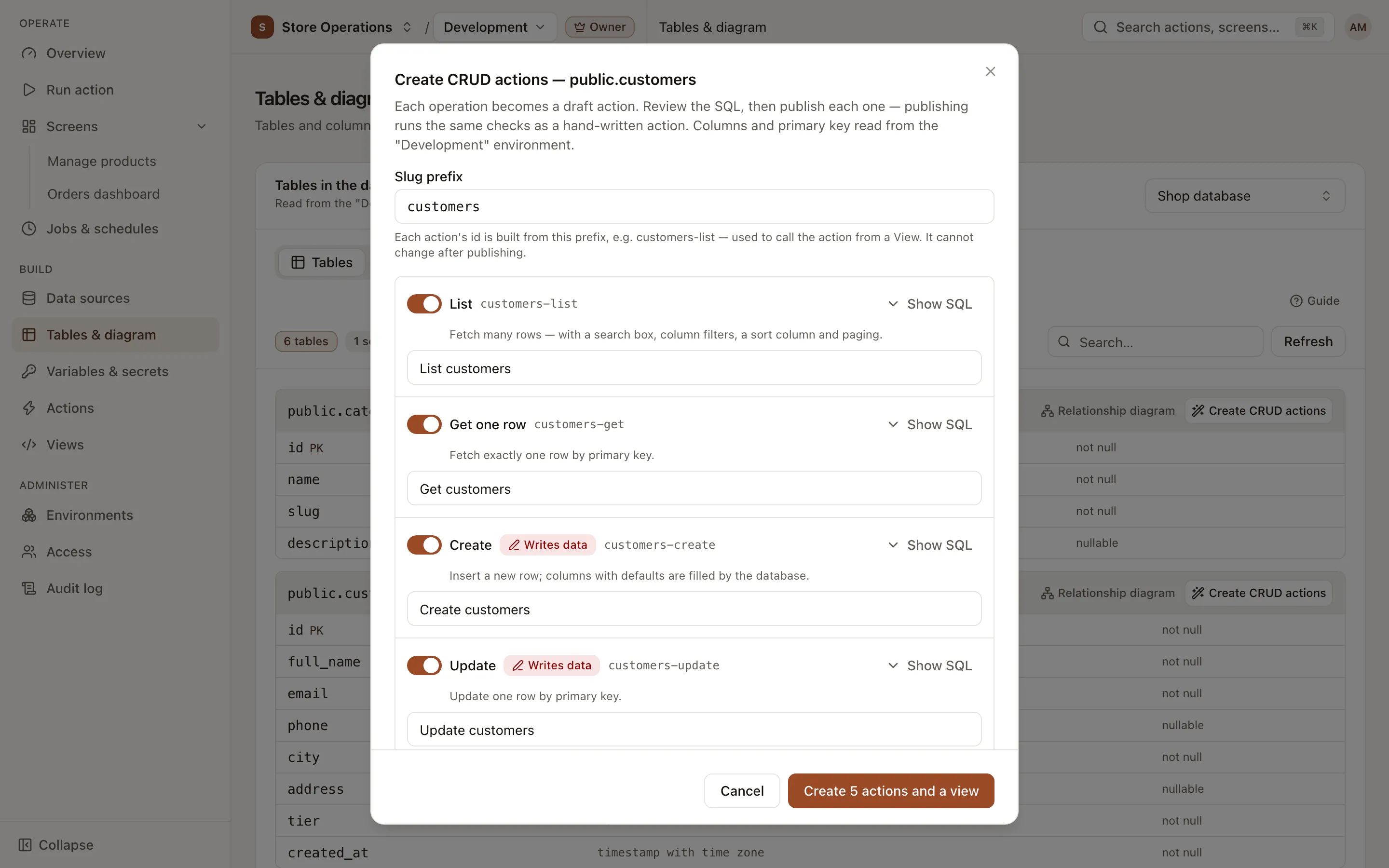
- Check the Slug prefix. Each action’s slug is built from this prefix. The slug is the identifier used to call the action from a view, and it cannot be changed after publishing.
- Select the operations to generate. Each operation has an editable Action name and a Show SQL button that displays the exact statement that will be saved.
- Select the Environments. The default is every environment except production.
- Select Who can run them (see below).
- Optionally turn on Also create a view and Publish right away (see below).
- Click the create button (Create N actions or Create N actions and a view). If Publish right away is on or a production environment is selected, the platform asks for confirmation before creating anything.
Operations
Section titled “Operations”| Operation | Generated action |
|---|---|
| List | Fetches many rows: a search box (case-insensitive substring over the text columns), column filters, a sort column and direction, and paging (50 rows per page by default). |
| Get one row | Fetches exactly one row by primary key. |
| Create | Inserts a new row. Columns with a default or generated value are filled by the database. |
| Update | Updates one row by primary key. Fields left empty keep their current value. |
| Delete | Deletes one row by primary key. |
Get one row, Update and Delete require a primary key. A database view (not a table) offers only List. When an operation cannot be generated, the dialog states the reason, for example a missing primary key or a required column whose type cannot be entered from a form (binary, geometry).
Who can run them
Section titled “Who can run them”- Only you and higher roles (default): the actions are set to restricted. Run access is granted to the creator, the project admins (if the creator is an editor) and the organization owners, as of creation time. Other users must be granted access on each action’s permissions card.
- Every project member: anyone who can enter the environment can run the actions, including write actions.
- Choose people and groups (admins only): select members and groups. The creator is always included.
Also create a view
Section titled “Also create a view”This option is on by default when the List operation is selected. The platform also creates a draft view that uses the generated actions, with two layouts:
- Manage: a table with search, column filters, sorting and paging; view, add, edit and delete rows.
- Browse: a table with search, filters, sorting, paging and row details; no writes.
After the view is published, users who can run the actions open it under Screens. See Build a view.
Review and publish
Section titled “Review and publish”By default, everything is created as a draft, and nobody can run it yet. As a result, write actions (update, delete) cannot run until someone has reviewed the SQL.
- On the result screen, click Open on each action to review its SQL and inputs.
- Edit if needed (name, param labels, SQL), then click Publish. Publishing runs the same checks as for a hand-written action.
- If you created a view, publish the actions first, then open the view and click Publish.
- Go to Run action to test the actions, or open the screen with Open screen.
See also
Section titled “See also”- Create an action: adjust params, transformers and versions.
- Build a view
- Run actions