Tables & diagram
Browse the tables, columns, primary keys, foreign keys and relationship diagram of a SQL data source, then generate CRUD actions from a table.
The Tables & diagram page reads the structure of a SQL data source (PostgreSQL, MySQL) directly: its tables, columns, primary keys, foreign keys and a diagram of the relationships between tables. You also generate CRUD actions for a table from this page.
Required roles
Section titled “Required roles”You need the Editor role or above in the selected environment. The data source must have a saved config for that environment; if it does not, ask a project admin to enter the connection first.
HTTP data sources have no tables, so they do not appear on this page.
Browse tables and columns
Section titled “Browse tables and columns”- Go to Build > Tables & diagram.
- Select a SQL data source in the selector at the top of the page. Data is read from the environment selected in the top bar.
- In the Tables tab, each block is one table, with column names, types,
nullable/not null, and the Primary key and Foreign key markers. A foreign key column has a→ table_namelink to the target table. - When the database has many tables, use the search box to filter tables by name.
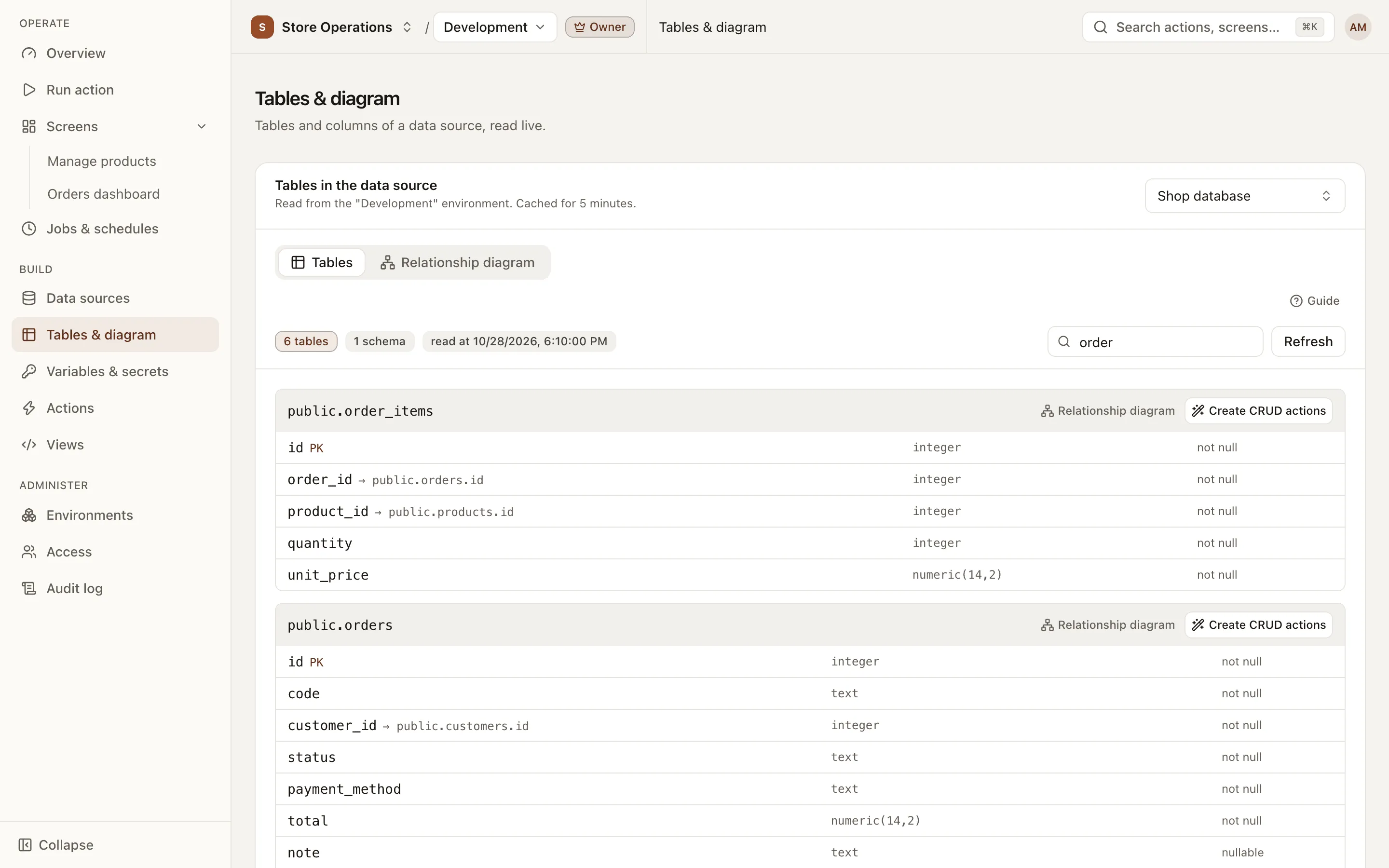
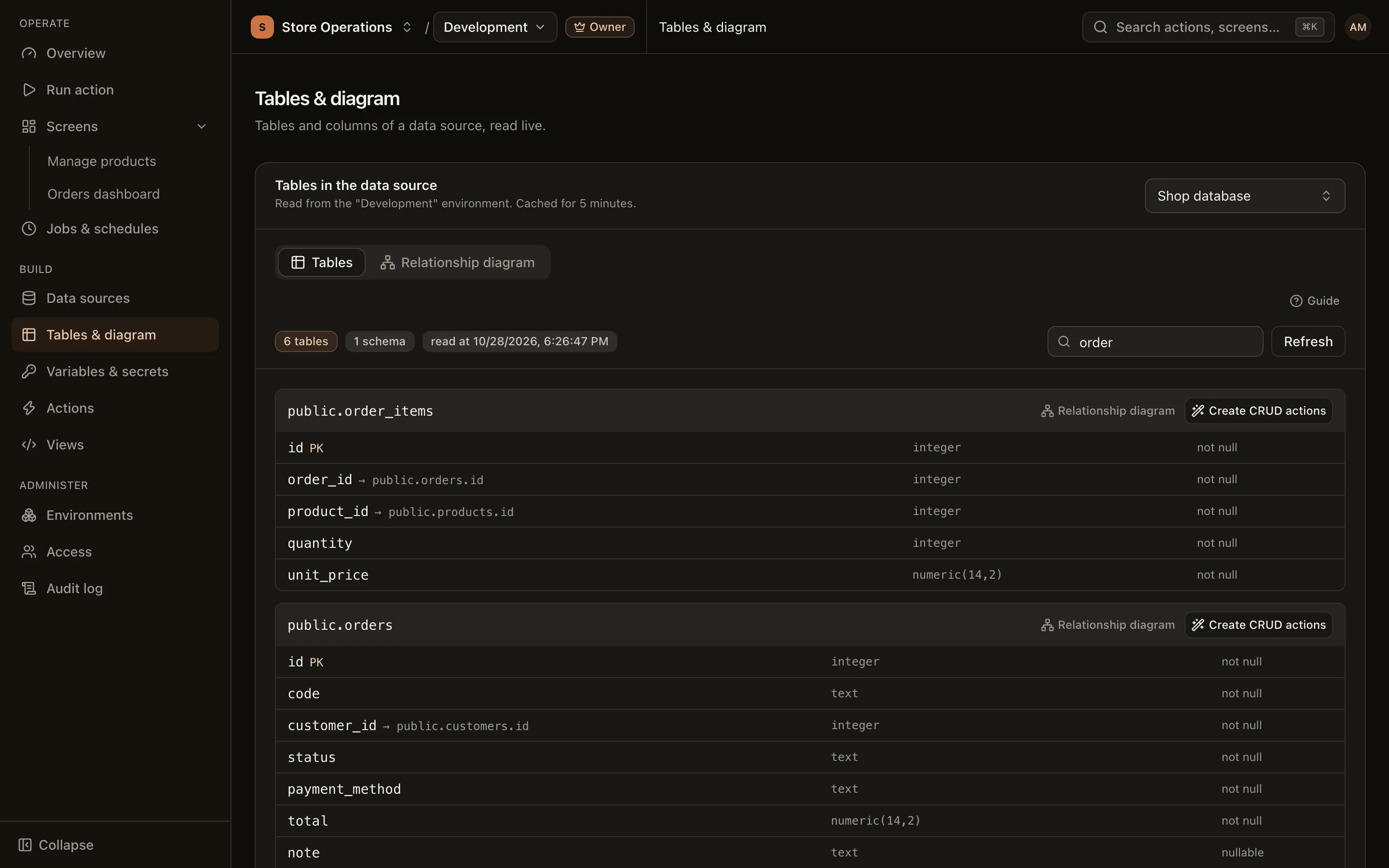
5-minute cache
Section titled “5-minute cache”Schema reads are cached for 5 minutes per data source and environment; the description line shows when the schema was read. After you add a table or change a column, click Refresh to read the schema again immediately.
Relationship diagram
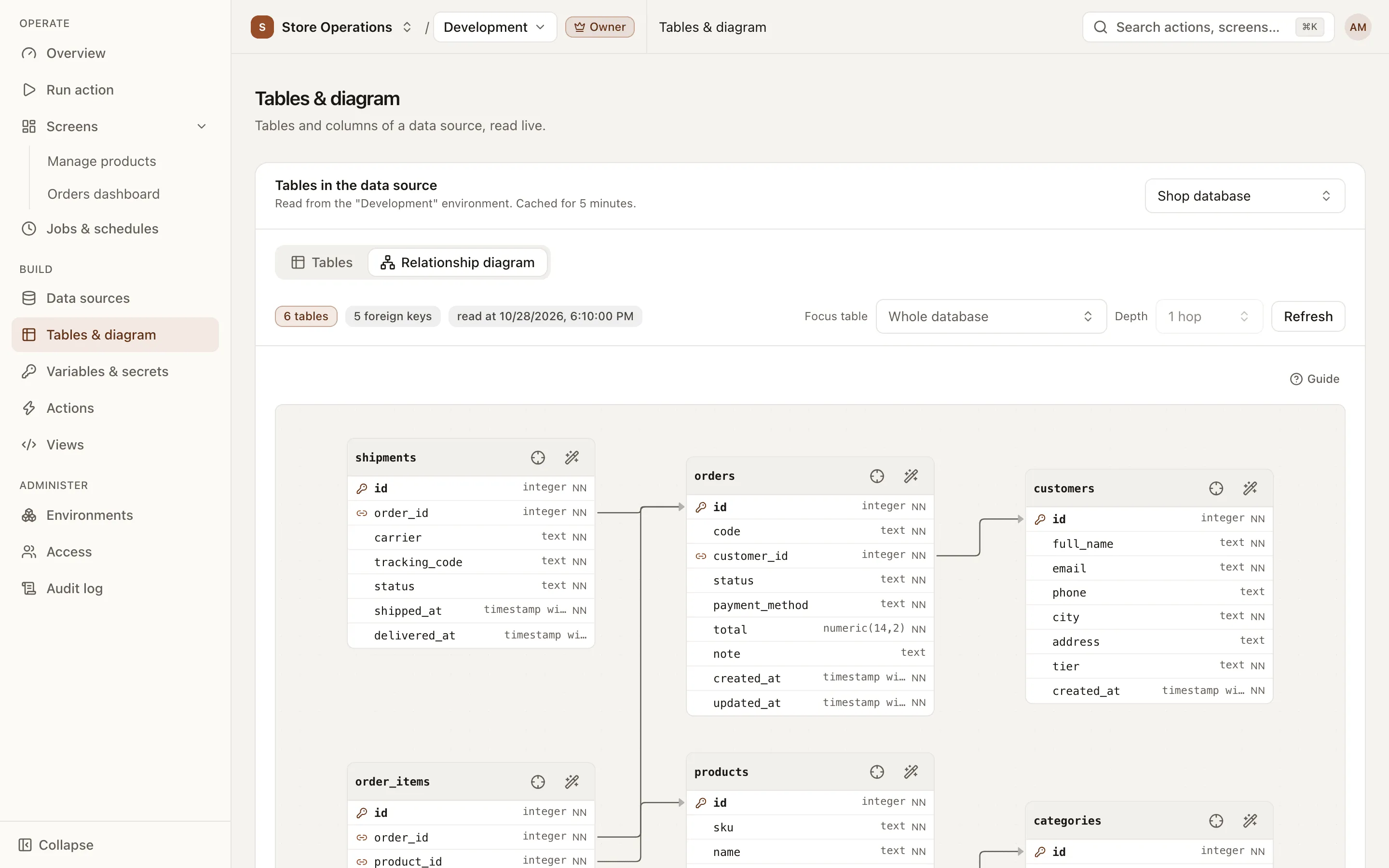
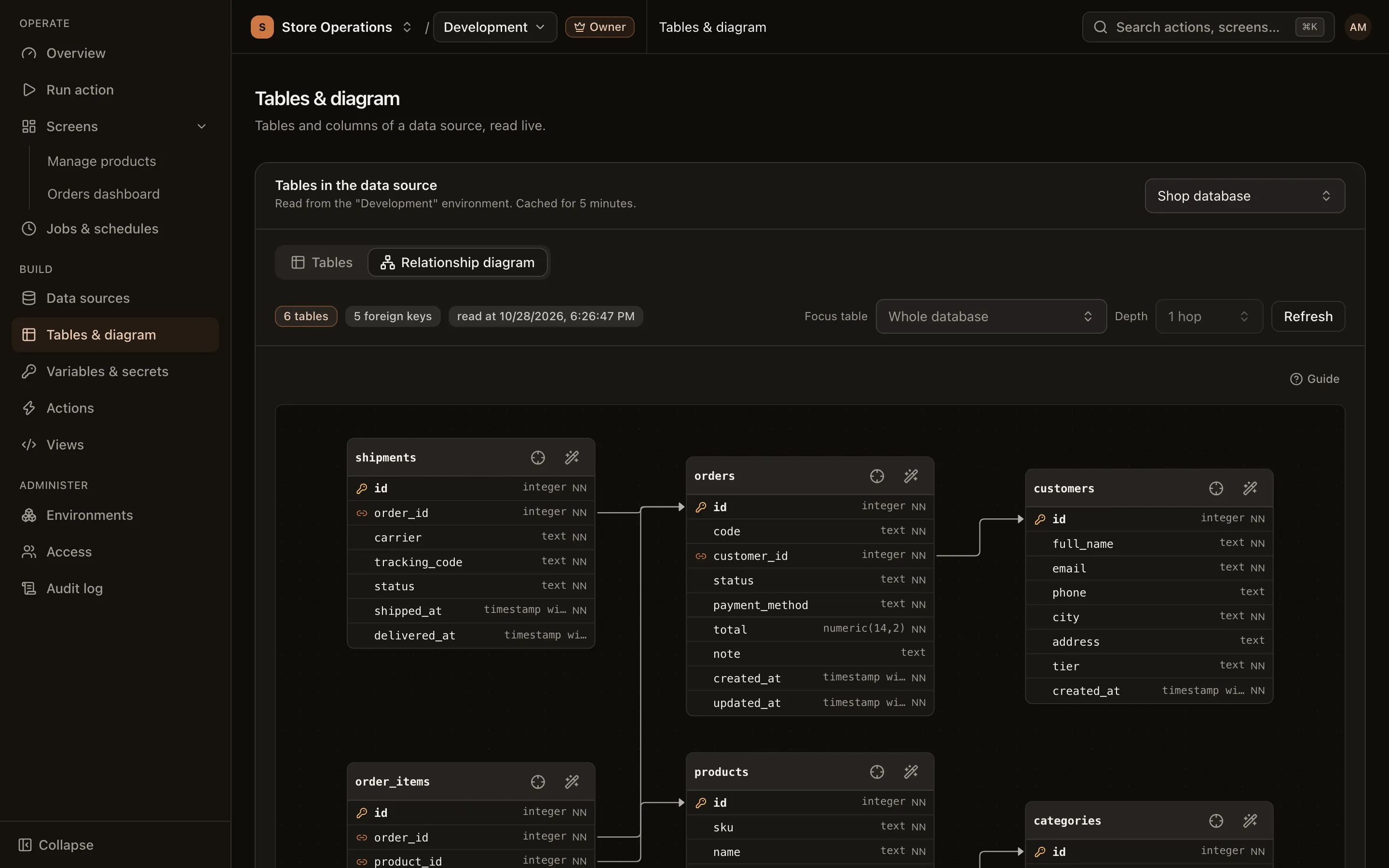
Section titled “Relationship diagram”The Relationship diagram tab draws each table as a box. Arrows point from a foreign key column to the referenced table.
- Click a table to highlight its links.
- Focus table: select a table to show only that table and the tables linked to it; increase Depth (1–3 hops) to expand. Click Clear focus to return to the whole database. Each box also has a Focus here button.
- Drag the background to pan. Use Ctrl + scroll or the Zoom in / Zoom out buttons to zoom. Click Fit to view to see the whole diagram.
- In the Tables tab, View relationship diagram on a table opens the diagram focused on that table.
Generate CRUD actions from a table
Section titled “Generate CRUD actions from a table”Click Create CRUD actions on a table, either in the Tables tab or on the table’s box in the Relationship diagram tab. In the dialog, you select the operations (list, get, create, update, delete), the environments, the run permissions, and optionally a view to create with the actions. For the detailed steps, see Generated CRUD actions.
See also
Section titled “See also”- Generated CRUD actions
- Create an action: write your own SQL, with table and column autocomplete.