Access control
Add members to a project with a role, manage groups, set who can run each action, and allow a JS action to call another action.
Permissions in a project have three independent layers:
- The project role (Admin, Editor, Viewer) determines who can build what. See Roles.
- Environment access determines who can work in which environment. See Environments.
- Action permissions determine who can run each action: from the Run action page, inside screens (views) and through JS actions.
This page covers layers 1 and 3.
Required roles
Section titled “Required roles”Project Admins and Owners. The Administer > Access page and the Action permissions card are shown only to these roles.
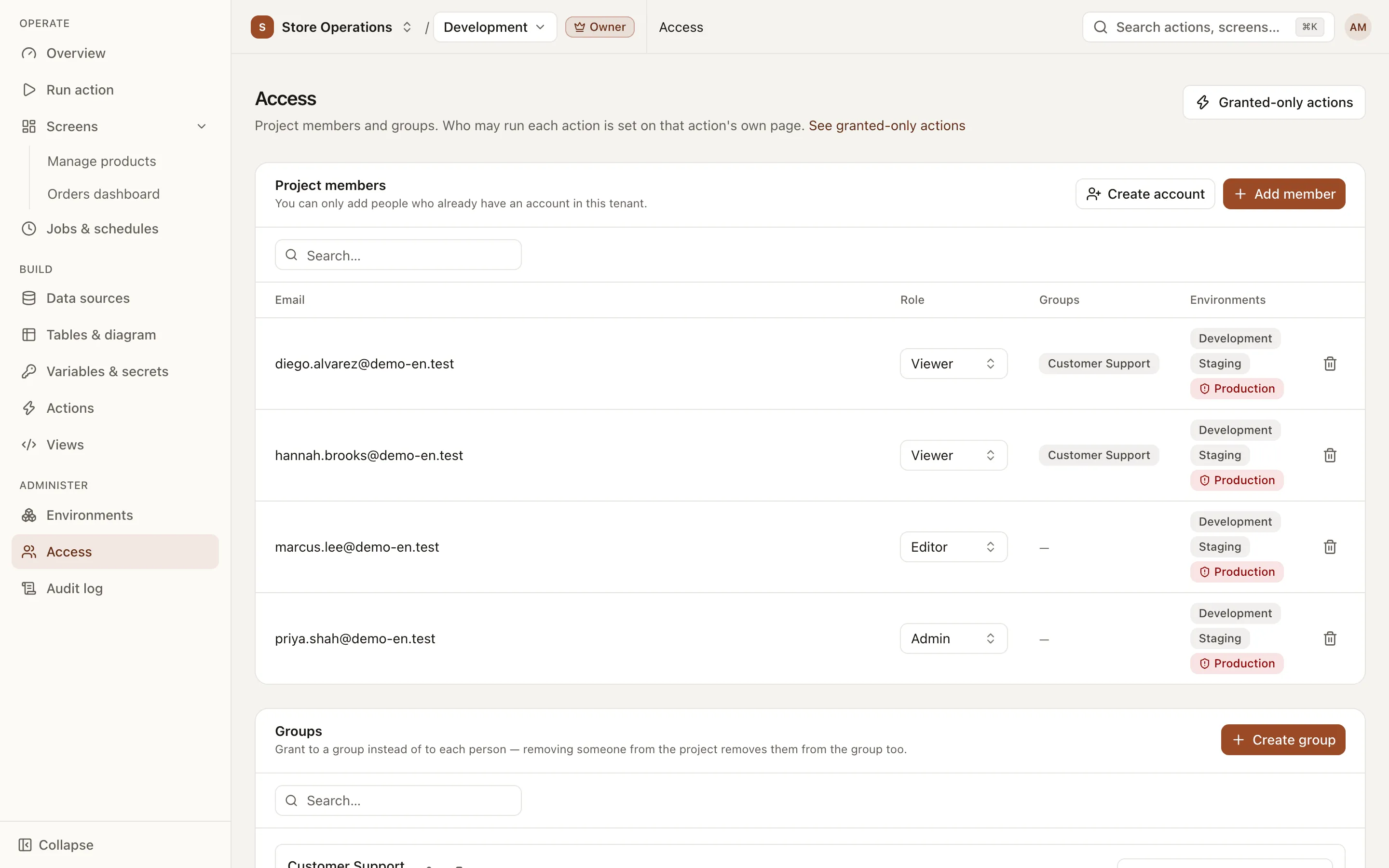
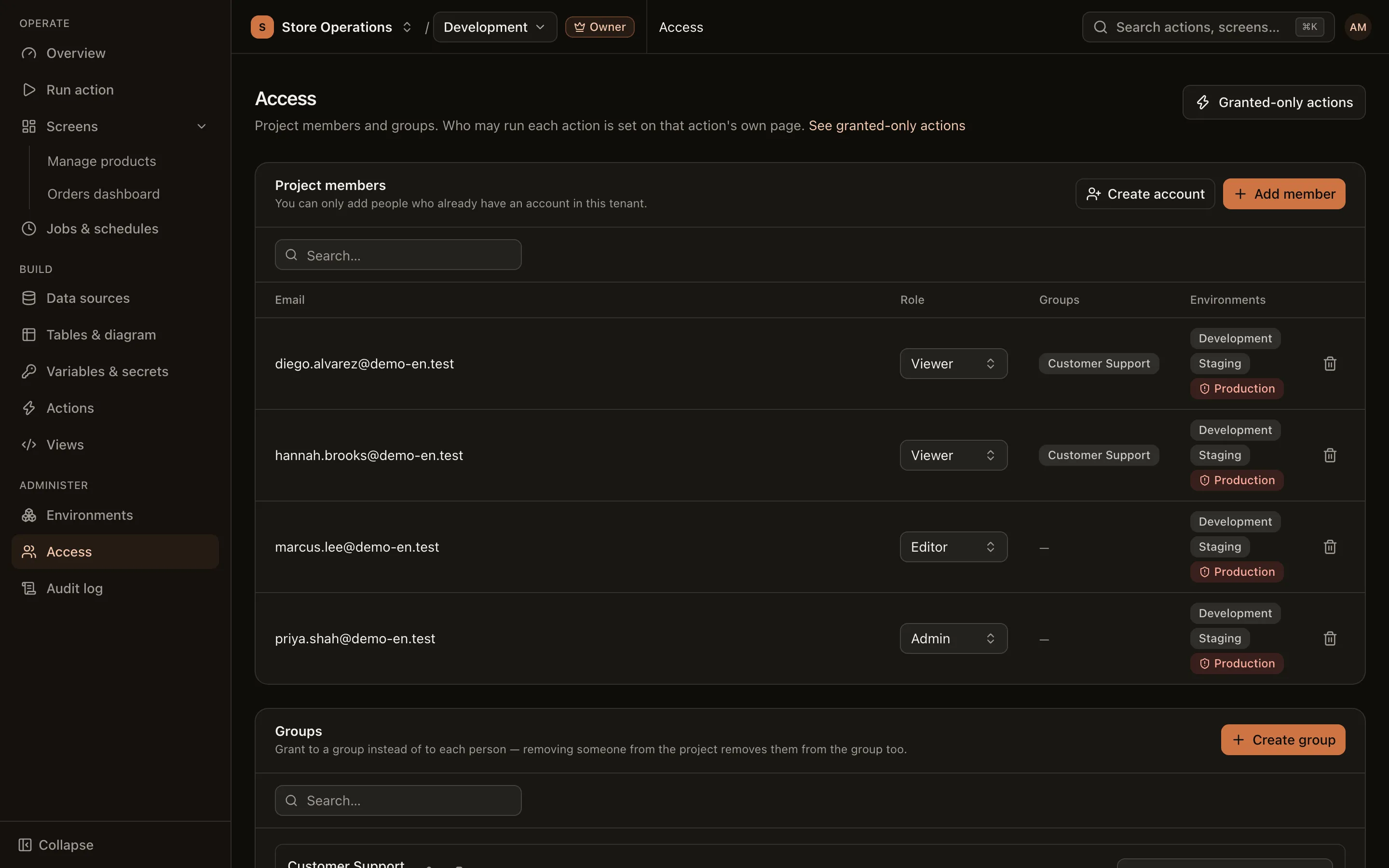
Project members
Section titled “Project members”The Project members block lists every member, their role and the environments they can enter (shown as prod · Viewer). Organization owners can always open every project and do not need to be added.
Add a member
Section titled “Add a member”- Go to Administer > Access and click Add member.
- Select the user by email. Only users who already have an account in the organization can be added. For users without an account, an owner must create one first (owners also see a Create account button).
- Select a Role:
admin,editororviewer. The picker summarizes the permissions of each role. - Click Add.
Change a role or remove a member
Section titled “Change a role or remove a member”- Change a role: select a new role on the member’s row. The confirmation dialog lists the permissions the member gains or loses. Click Change role to confirm. Demoting a user from admin removes their access to restricted environments they were not granted separately; schedules that run as them in those environments are turned off.
- Remove from project: the user loses access to the project immediately, leaves every group in it, and loses any action permissions granted to them directly. Schedules that run as them are disabled, and their queued or running jobs are cancelled.
Groups
Section titled “Groups”Groups grant permissions to a whole team instead of one person at a time. Removing a user from the project also removes them from every group.
- In the Groups block, click Create group.
- Enter a Group name and a Slug. The slug cannot be changed after creation.
- Click Create group, then use Add member… on the group to add users.
Groups are used in two places: granting run access on actions and granting access to restricted environments.
Delete group: members leave the group, and every action permission and environment access granted to the group is revoked. Users who lose access to an environment have their schedules there turned off and their unfinished jobs cancelled. This action cannot be undone.
Run permissions per action
Section titled “Run permissions per action”Run permissions are set on the action’s own page: the Settings & access tab, Action permissions card.
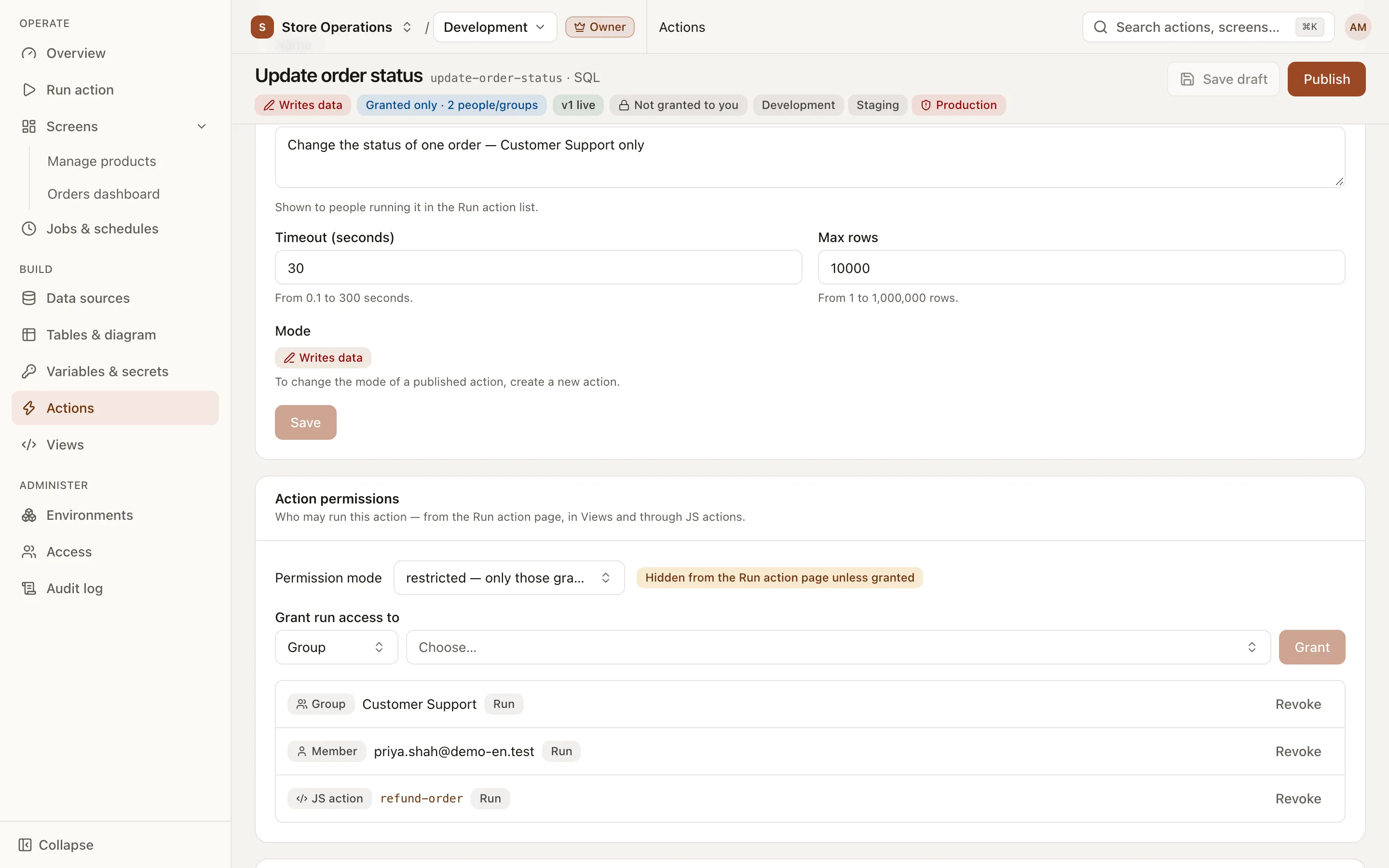
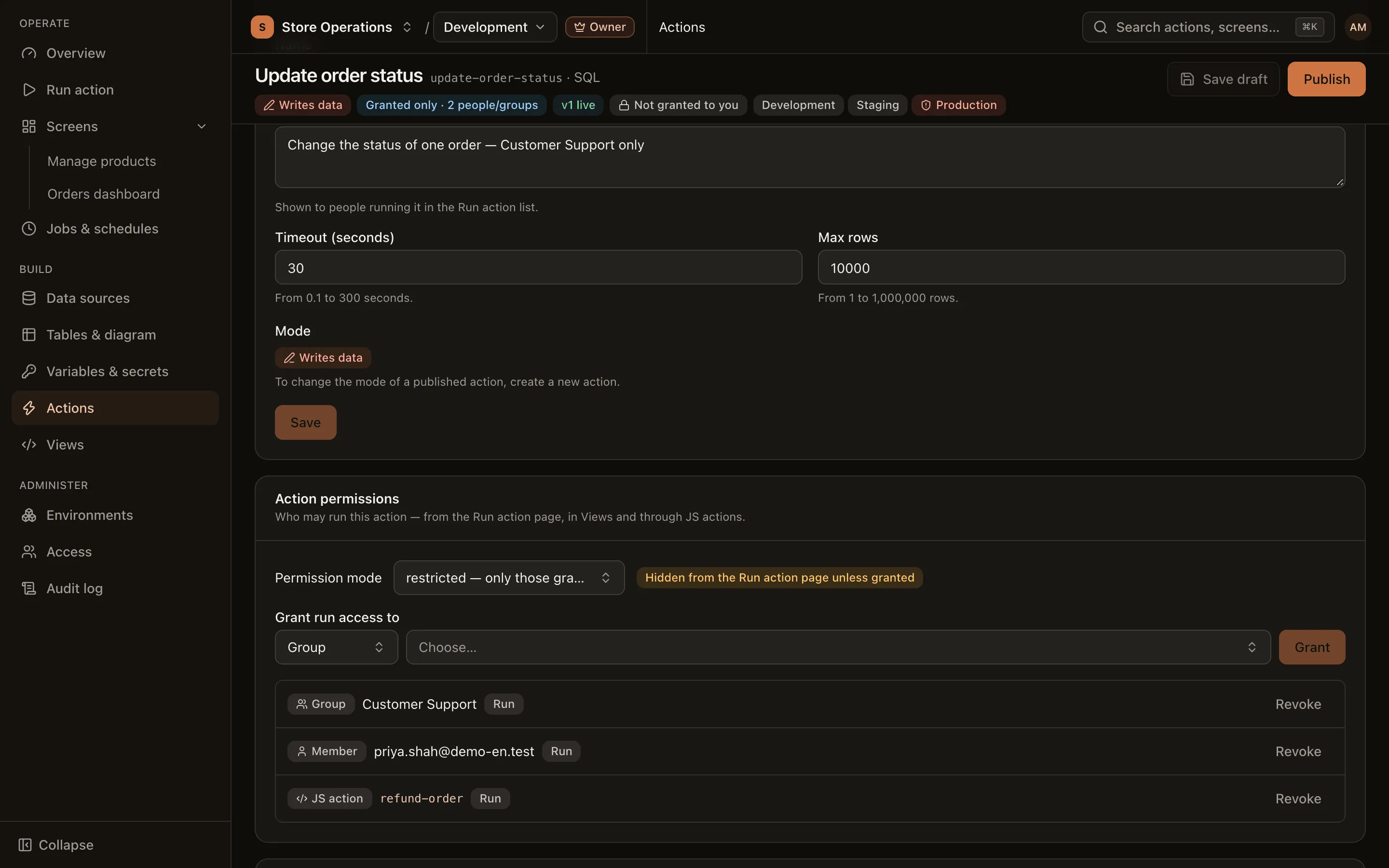
The Permission mode has two values:
| Mode | Who can run it | Label in the action list |
|---|---|---|
open — every member | Every project member (still subject to environment access). | All members |
restricted — only those granted | Only the members, groups (and JS actions) on the grant list. | Granted only |
Restrict an action and grant access
Section titled “Restrict an action and grant access”- Open the action and select the Settings & access tab.
- Under Grant run access to, select a type (Member, Group or JS action), select the person or group, and click Grant. Grant access before switching the mode.
- Change Permission mode to
restricted — only those grantedand confirm with Change permission mode.
- In restricted mode, the action is hidden from the Run action page for users without a grant.
- Switching back to
openkeeps the grant list, but the list no longer has any effect. - A write action that is open to every member shows a warning that suggests restricting it.
- The See granted-only actions link at the top of the Access page opens the action list filtered to restricted actions.
Allow a JS action to call another action
Section titled “Allow a JS action to call another action”A JS action calls other actions with the permissions of the user running the JS action. No permissions are elevated. If the called action is restricted, allow that JS action explicitly:
- Open the called action (the action that will be called) and select the Settings & access tab.
- Under Grant run access to, select the type JS action, then use Pick a JS action… to select the JS action to allow.
- Click Grant.
- A JS action entry takes effect only while the called action is restricted.
- Users do not see the called action on the Run action page unless granted separately; they can use it only through the JS action.
- A user who runs the JS action still needs permission to run the JS action itself. Publishing a JS action does not grant any extra permission.
- If the list contains only JS actions (no members or groups), the called action no longer appears on anyone’s Run action page and can be called only through those JS actions.
See JS actions.
Permissions and screens (views)
Section titled “Permissions and screens (views)”A screen runs with the permissions of the user viewing it. Publishing a view does not grant anyone permission to run actions. If a viewer lacks permission on an action that the screen uses, the screen still renders, but that part has no data and shows the message “Part of this screen will have no data because you haven’t been given access”. Grant access on each action that the screen needs. See Screens.