Jobs & schedules
Monitor and cancel background and bulk jobs; set up cron schedules (in UTC) that run an action periodically in one or more environments.
A job is a run in the background. A job is created when a user clicks Add to the queue or Bulk run on the Run action page, or when a schedule fires. Use the Jobs & schedules page to monitor progress, read errors, cancel jobs and manage recurring schedules.
Required roles
Section titled “Required roles”| Viewer | Editor and above | |
|---|---|---|
| See jobs | Only their own (the menu reads Jobs) | Every job in the project |
| Cancel a queued / running job | Their own | Any job |
| Create, enable/disable, change environments of, delete schedules | No | Yes |
Job list
Section titled “Job list”- Go to Operate > Jobs & schedules.
- The Jobs card lists each job with its Action, Kind (Single, Bulk, Scheduled), Status, Progress and Created time.
- Filter by Status (for example Queued / running) or turn on Only my jobs.
- Click a job to see its details.
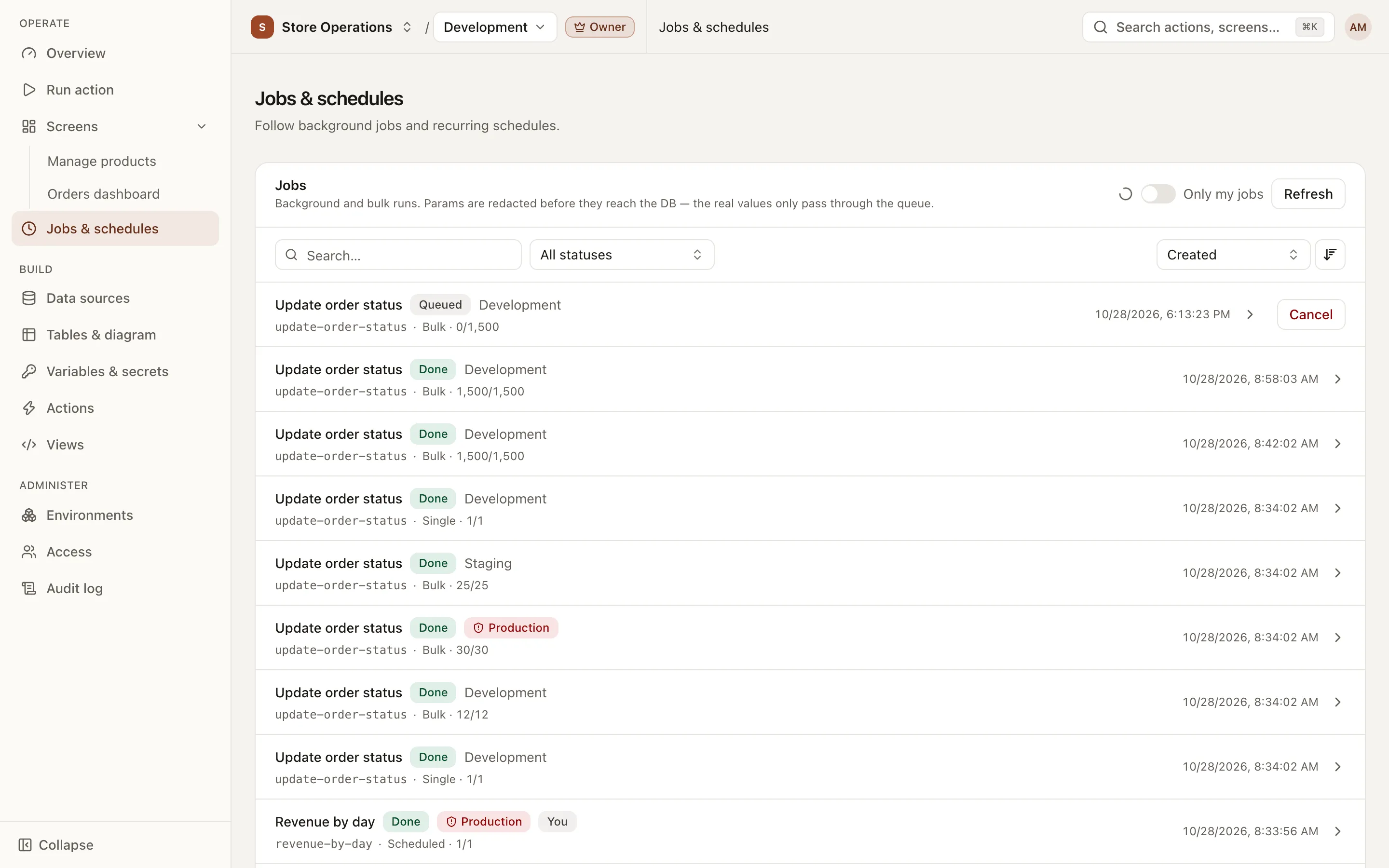
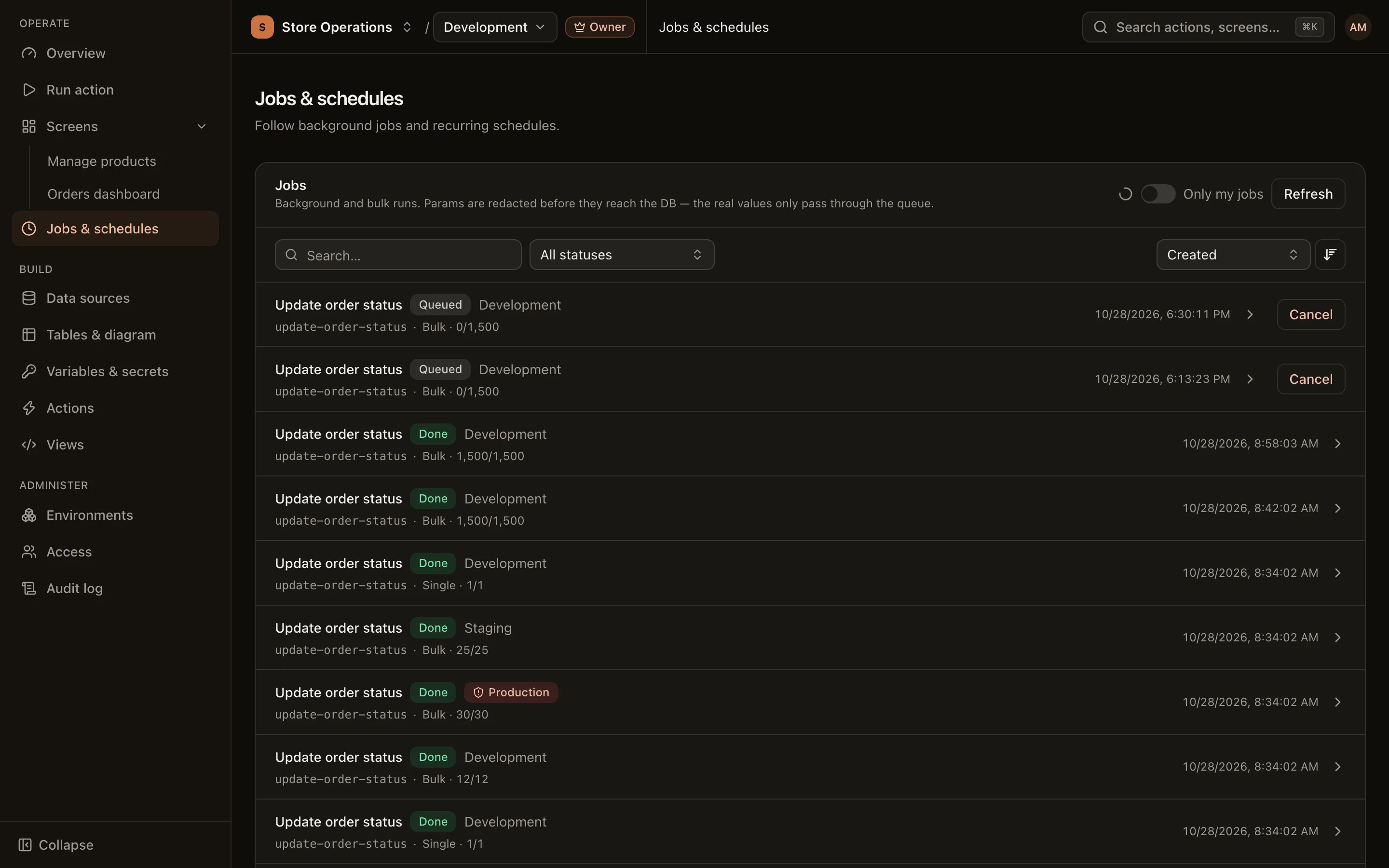
While any job is Queued or Running, the list refreshes automatically every 2 seconds, so you do not need to reload the page.
Job statuses: Queued, Running, Done, Failed, Cancelled.
Job details
Section titled “Job details”- Progress: items done out of the total, plus the number of failed items (for bulk jobs).
- Details: the creator, the start and finish times, Params (secret values hidden), and the error of the most recent failed item.
- Open run page: opens the Run action page for that action.
Secret values in params are hidden before the job is stored. Returned data is not stored; only row counts and errors are kept.
Cancel a job
Section titled “Cancel a job”Click Cancel on a queued or running job, then confirm with Cancel job. The job stops before its next item: the item already running finishes (because stopping a write query halfway is riskier), and items not yet started do not run. Items that already ran are not undone.
Schedules (cron)
Section titled “Schedules (cron)”A schedule runs an action periodically without anyone clicking. You need the Editor role or above.
- In the Schedules card, click New schedule.
- Enter a Schedule name and select the Action. Only published SQL actions can be selected; JS actions cannot be scheduled.
- Enter a five-field Cron expression (
minute hour day month weekday) in UTC. The form shows the Next three runs in your time zone so that you can check the expression. - Select the Applies to environments. Only environments in which the action is enabled can be selected.
- Fill in the Parameters. A schedule has no user to fill in a form, so the params are fixed in this step.
- Click Create schedule. If the schedule runs in a production environment, the platform asks for confirmation.
Cron examples (UTC):
| Cron | Meaning |
|---|---|
0 1 * * * | 01:00 UTC every day |
*/15 * * * * | Every 15 minutes |
0 2 * * 1 | 02:00 UTC every Monday |
Several environments, several jobs
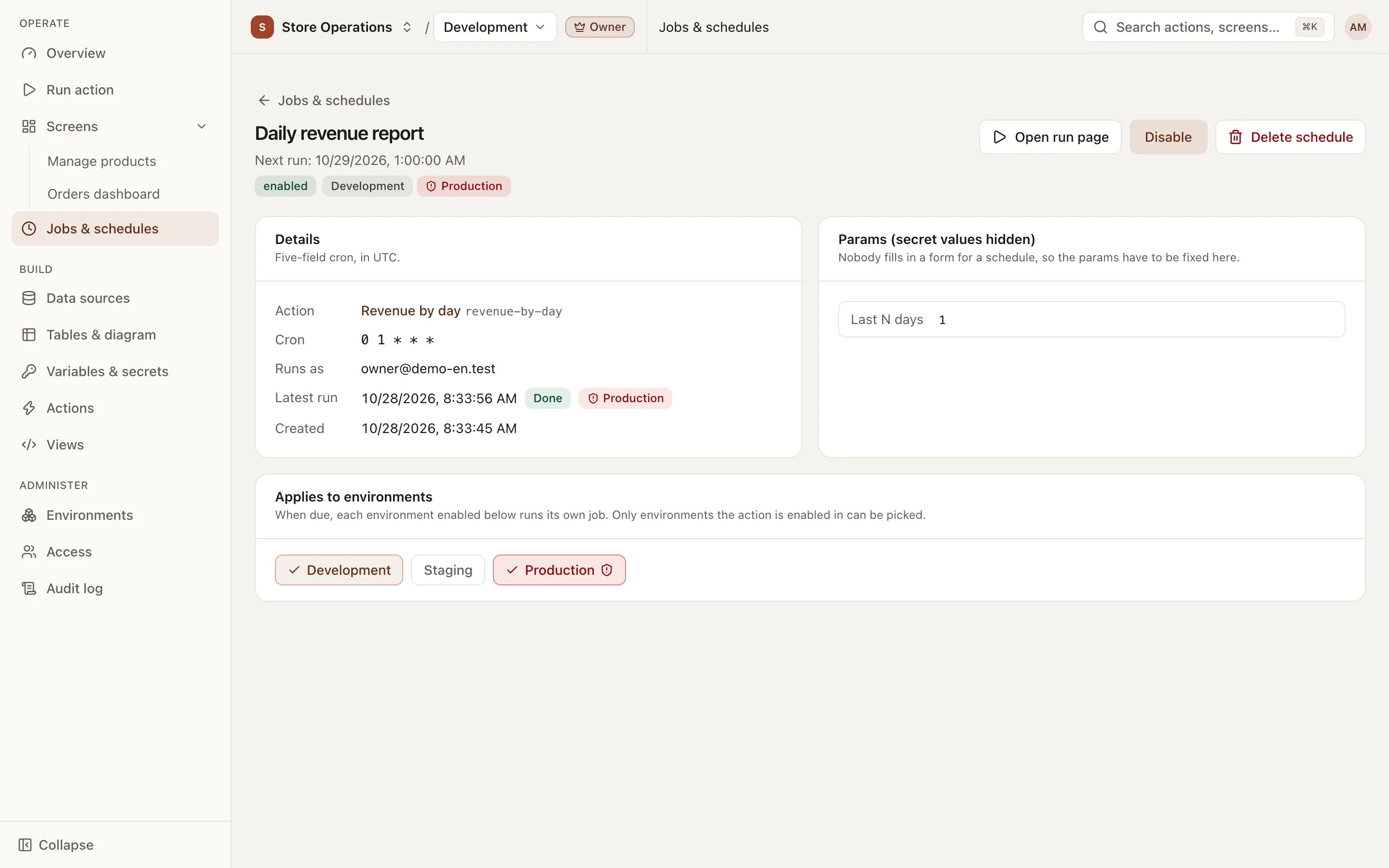
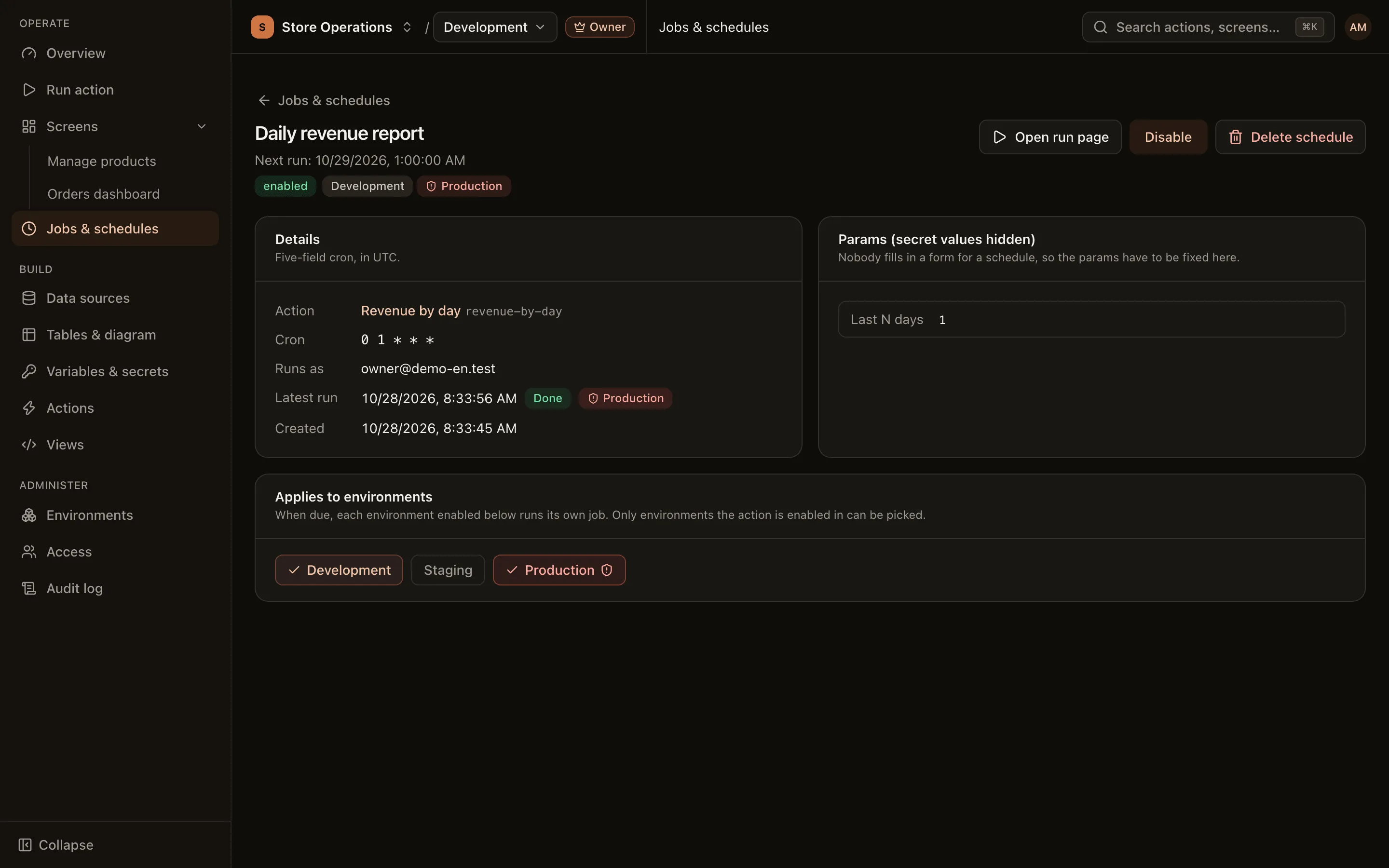
Section titled “Several environments, several jobs”A schedule can be attached to several environments. When it fires, each environment gets its own job. Environments in which the action is no longer enabled are skipped. If the action is no longer enabled in any of the schedule’s environments, the schedule detail page warns that the schedule will not create any jobs.
Schedule run permissions
Section titled “Schedule run permissions”- A schedule runs with its creator’s permissions, shown in the Runs as line. If that user loses permission on the action or is removed from the project, the schedule stops. There is no permission elevation.
- When a user re-enables a schedule or changes its environments, the schedule switches to running with that user’s permissions.
- Missed runs (for example while the platform was paused) are not caught up: the schedule runs once when it is active again.
Manage a schedule
Section titled “Manage a schedule”On the schedule detail page, you can:
- Enable / Disable the schedule. Enabling a schedule that runs in production always requires confirmation (Enable schedule), because the schedule runs against real data without anyone confirming each run.
- Change its Applies to environments.
- Delete schedule: the schedule stops immediately; jobs it already ran remain in the job list.