Create an action
Write a parameterized SQL action, publish it through validation, manage versions, and set its environments and run permissions.
An action is a named operation on your data, usually a SQL statement with parameters. After an action is published, users run it through the generated form on the Run action page, inside a view, from a JS action or on a schedule.
Required roles
Section titled “Required roles”- Editor and above: create, edit, publish and roll back actions, and set the environments they apply to.
- Admin and above: set run permissions (the Action permissions card) and delete actions.
Create a SQL action
Section titled “Create a SQL action”-
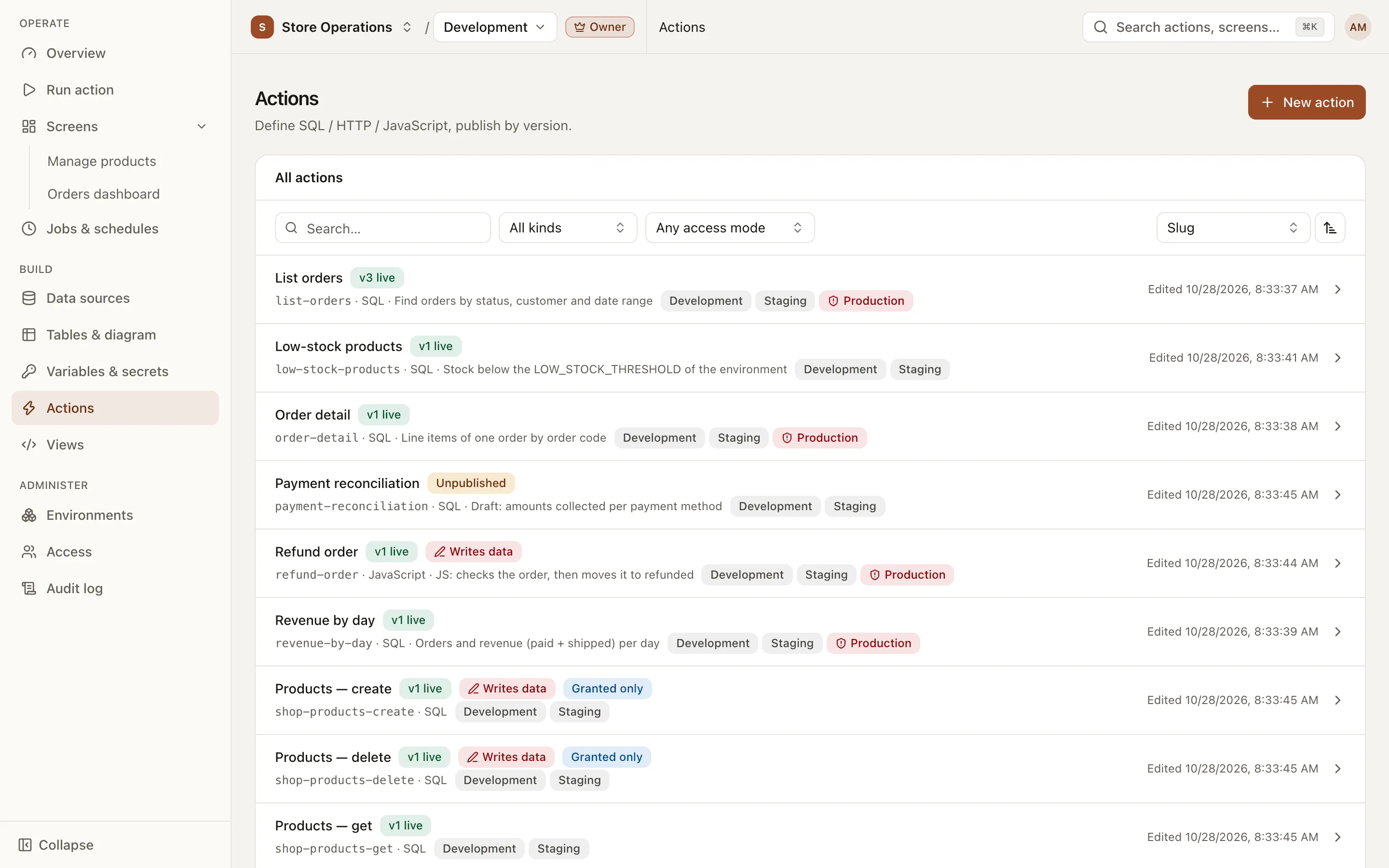
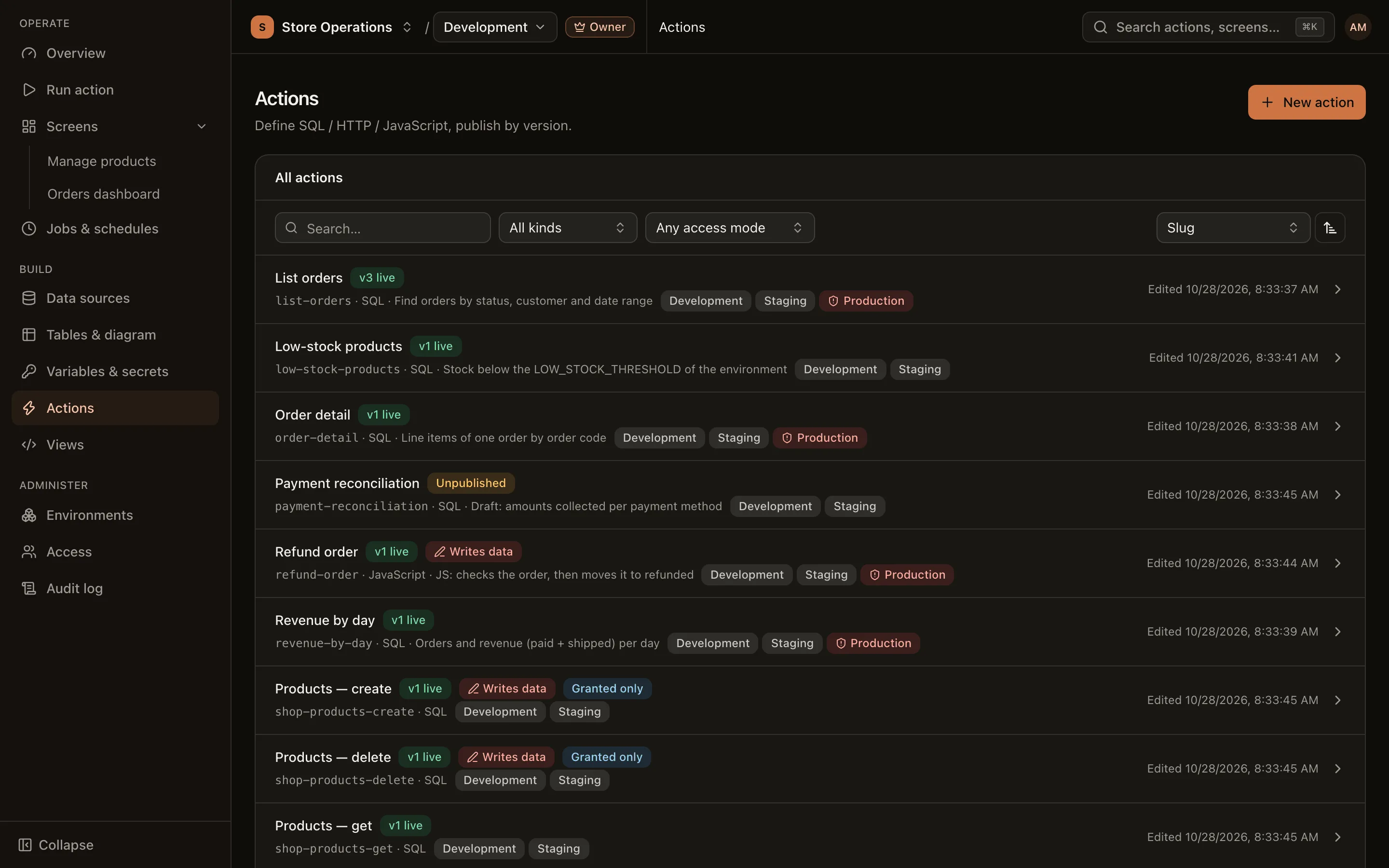
Go to Build > Actions and click New action.
-
Enter a Name and Slug. The slug is the identifier used to call the action from a view or JS action. It cannot be changed after the action is published.
-
Set Kind to SQL, then select the Data source (PostgreSQL or MySQL).
-
Select the Mode:
- Read-only: runs inside a read-only transaction. Publishing is refused if the SQL contains
INSERT,UPDATEorDELETE. - Writes data: allowed to write. Users always confirm before running it.
The mode also cannot be changed after publishing. To change it, create a new action.
- Read-only: runs inside a read-only transaction. Publishing is refused if the SQL contains
-
Click Create. The detail page opens on the Definition tab.
The Kind field offers SQL and JavaScript (JS actions). SQL actions run on PostgreSQL or MySQL data sources. No action kind runs on an HTTP data source yet; an HTTP data source can currently only store its config and test the connection.
Write the SQL and declare params
Section titled “Write the SQL and declare params”Write the SQL statement in the Definition tab. The editor suggests table and column names from the data source. Write parameters as {{paramName}}:
SELECT id, customer, status, totalFROM ordersWHERE status = {{status}}ORDER BY idDeclare every {{paramName}} in the Params section:
- Click Add a param, or Add N params from the SQL to add every param that the SQL uses but has not declared.
- Set the Name to match the text inside
{{...}}, the Label shown on the form, the Param type, and select required if needed. - Open Advanced to add a Description (shown under the input on the run form) and a Default value (pre-filled on the run form).
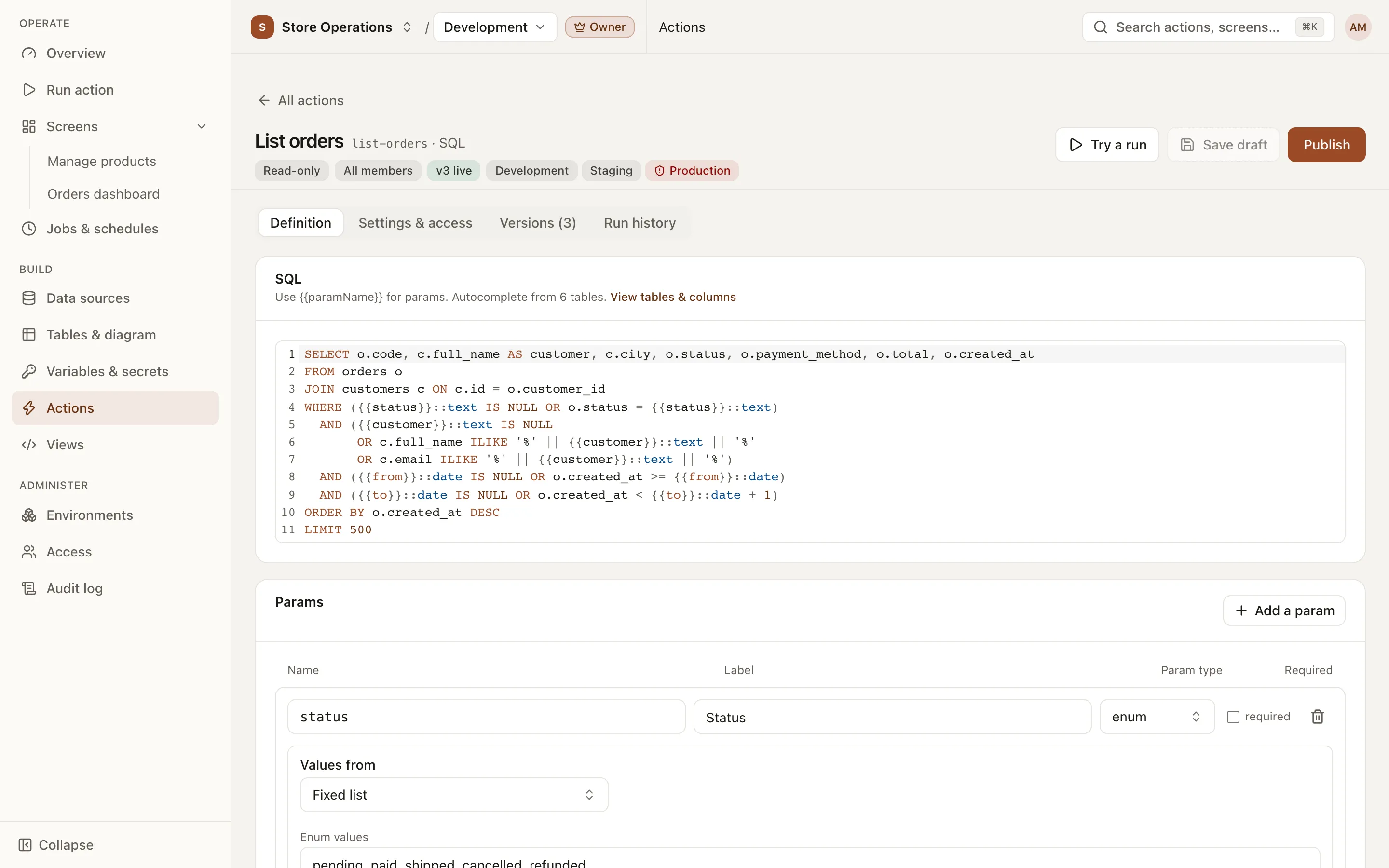
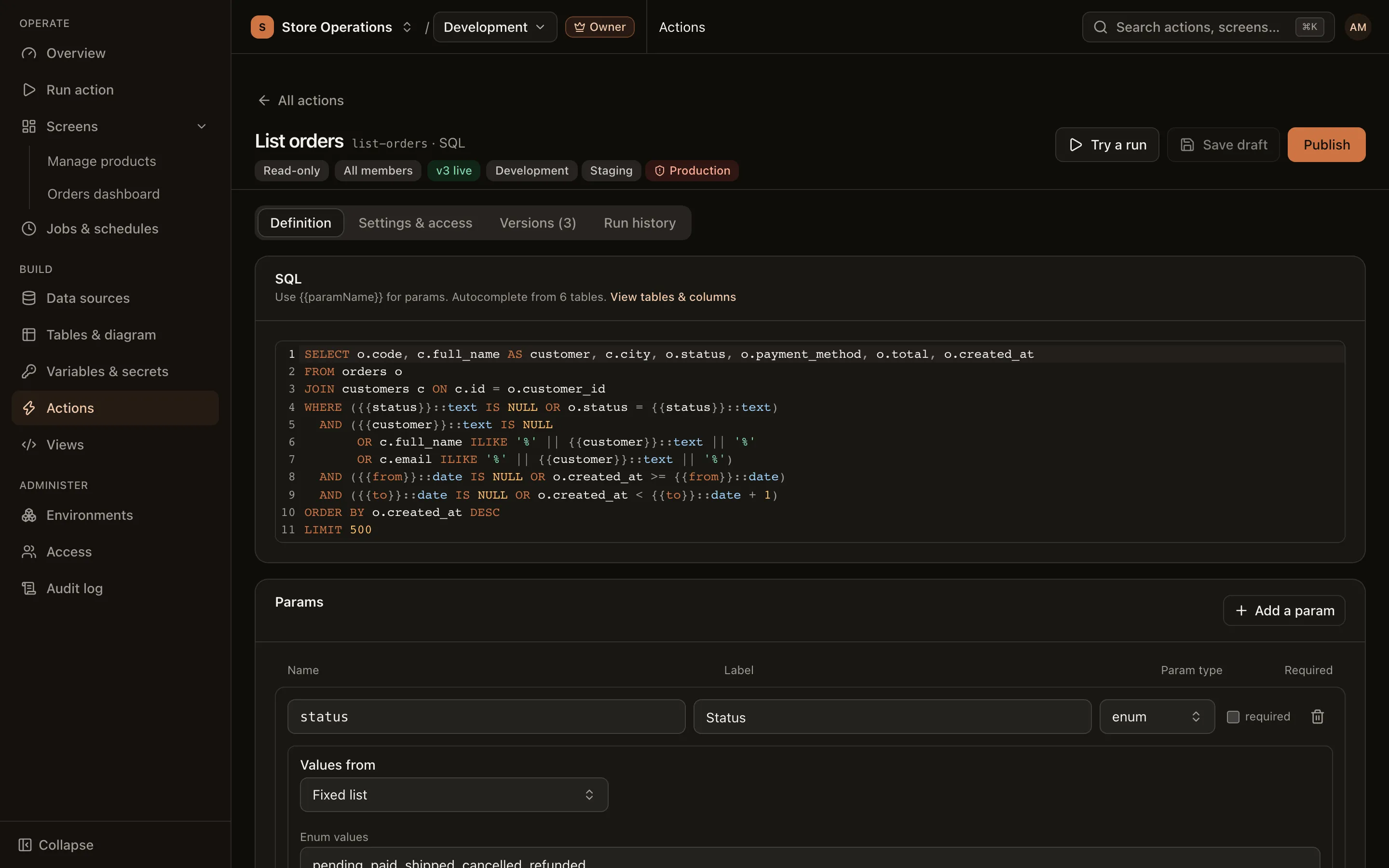
Params are always passed as bound values and are never inserted into the SQL text. An action can have up to 50 params.
Param types
Section titled “Param types”| Type | Input on the run form |
|---|---|
string | Text field |
number, integer | Number field |
boolean | Switch |
date, datetime | Date picker; datetime adds a time field |
enum | Drop-down list |
For details, see Parameters.
Choice lists (enum) and master data
Section titled “Choice lists (enum) and master data”For an enum param, choose Values from:
- Fixed list: enter the Enum values, separated by commas. The form previews the options the drop-down will show.
- Another action: use another action’s result as the list (master data, for example a list of stores). Select Pick a published source action, then choose the Value column and Label column.
Params in a column or table name position
Section titled “Params in a column or table name position”Only an enum param with a fixed list can be placed where a column or table name goes, for example to choose the sort column:
SELECT id, customer, total FROM orders ORDER BY {{sort_column}}The fixed list acts as the allowlist. A list loaded from another action cannot be used in this position. After publishing, the page shows which params are interpolated as identifiers.
Transformer
Section titled “Transformer”A transformer (optional) is a short JavaScript function that reshapes the result before it is displayed: it can rename columns and add links, images or badges. Click Add a transformer:
export default (rows, ctx) => rows.map((r) => ({ ID: linkToView('order-detail', { orderId: r.id }, r.id), Photo: image(r.photo_url, { width: 40, height: 40 }), Status: badge(r.status, r.status === 'paid' ? 'success' : 'warning'), Created: formatDate(r.created_at, 'YYYY-MM-DD'),}));Available built-ins: linkToAction, linkToView, linkToURL, image, video, badge, formatDate. The transformer runs in a sandbox: it has no fetch and cannot read anything other than rows and ctx.
Save a draft, publish, and versions
Section titled “Save a draft, publish, and versions”- Click Save draft to save your edits. Saving a draft runs no checks and does not affect the live version.
- Click Publish. The server validates the SQL before allowing it to run. If validation fails, the page shows Publish refused: with each problem and an issue count badge in the page header.
- For a write action, or an action enabled in production, the Publish vN? dialog opens. It compares the statement with the live version and lists added, removed and retyped params and the environments the action applies to. Confirm to publish.
- Each successful publish creates a new version. The Run action page, views, JS actions, jobs and schedules (including queued jobs) use the new version immediately.
Reasons a publish is refused
Section titled “Reasons a publish is refused”- The SQL uses a param that is not declared, or a declared param is not used.
- A param in a column or table name position is not an
enumwith a fixed list. - A Read-only action contains a write statement (
INSERT,UPDATE,DELETE). - The SQL contains DDL statements such as
DROP,ALTER,TRUNCATE,GRANT. - The SQL has several statements that are not wrapped in a transaction (PostgreSQL). On MySQL: one statement per action, no transaction control statements, and only allowed statement types (read:
SELECT,SHOW,EXPLAIN,DESC; write:INSERT,REPLACE,UPDATE,DELETE,CALL). - A built-in value is misspelled, for example
{{$user.name}}(only$user.idand$user.emailexist). - A list source is invalid: the source action does not exist, is not published, or the person publishing cannot run it.
Draft and live version
Section titled “Draft and live version”While an unpublished draft exists, the page shows Unpublished draft — the Run action page still runs vN. The Try a run button appears only after the action is published and the user has permission to run it. It opens the Run action page with the form generated from the params. Drafts cannot be run.
Compare and roll back
Section titled “Compare and roll back”- Open the Versions (N) tab. Each row is a published version; the live version is marked in use.
- Click View code on a version. The Code tab shows that version’s statement and transformer, and the Compare with the live version (vN) tab shows the line-by-line differences.
- Click Roll back to this one (or Roll back to vN in the code dialog), then confirm.
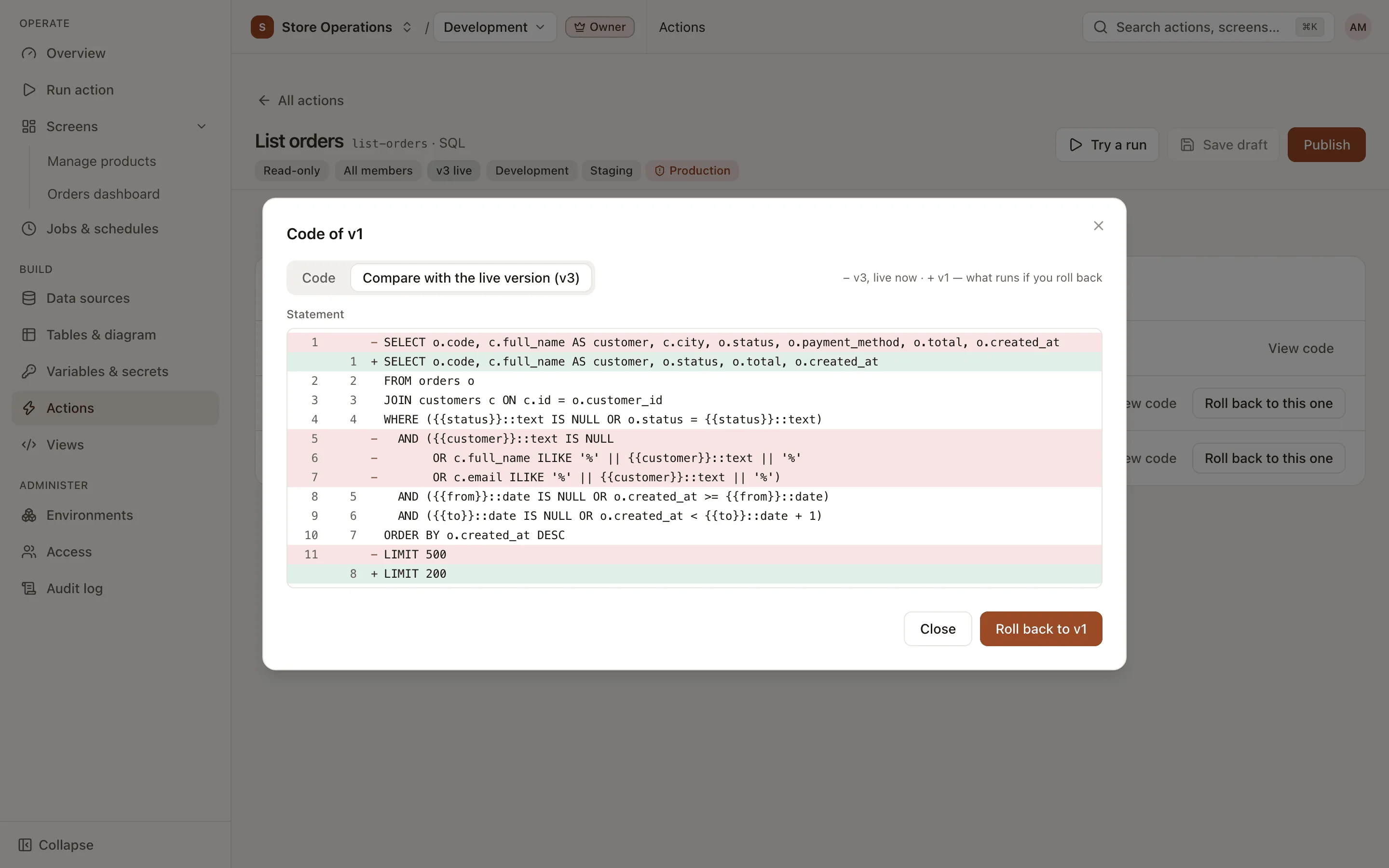
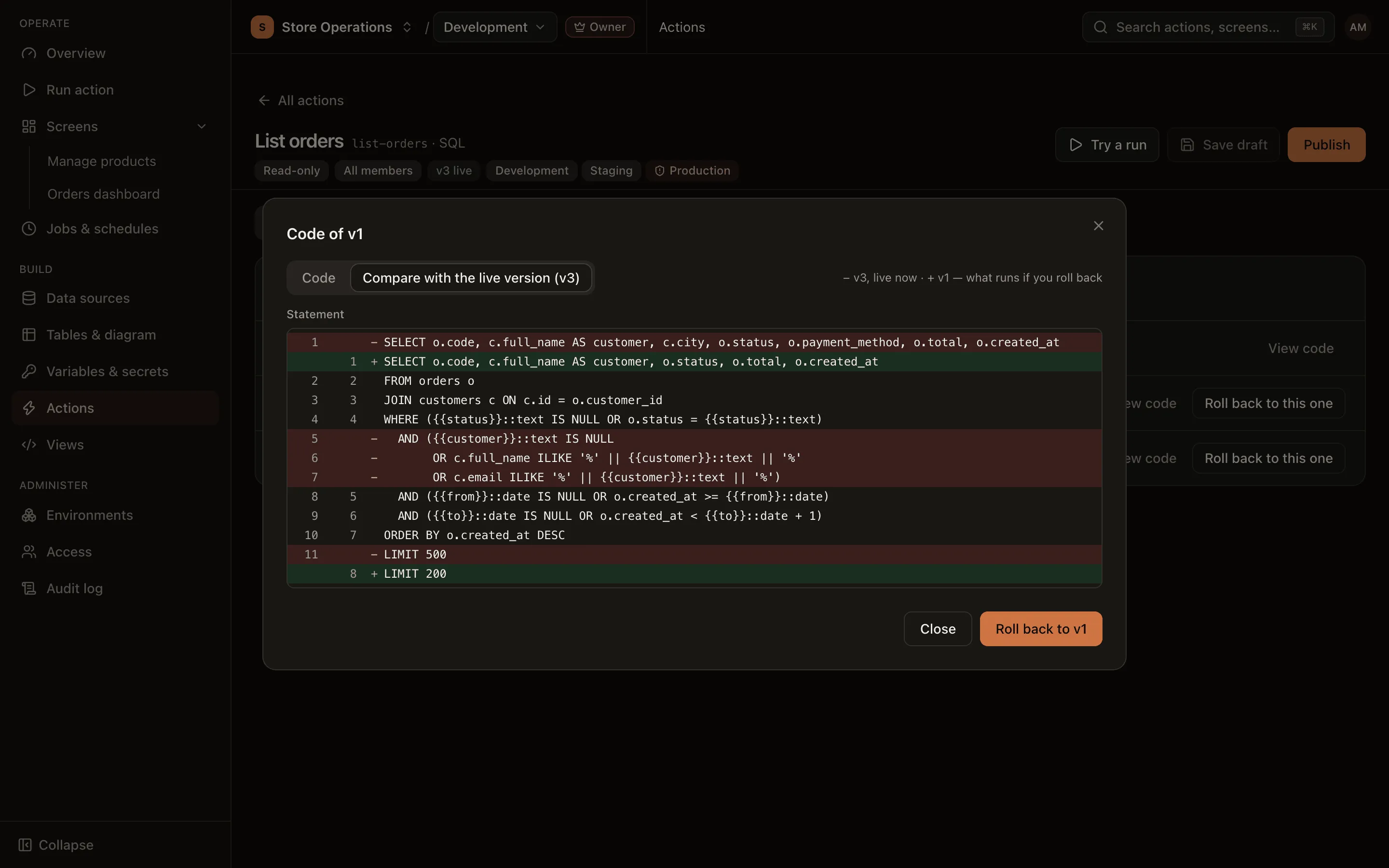
A rollback only changes which version is in use. It creates no new version and edits no existing version, and you can switch back to the newer version at any time. From the moment you confirm, every run (including queued jobs) uses the selected version.
Environments
Section titled “Environments”Actions are shared across the project but run only in the environments that are enabled for them. By default, a new action applies to every environment except production.
- Open the Settings & access tab (editors see it as Settings).
- In the Applies to environments card, turn each environment on or off. Changes are saved immediately.
- Enabling a production environment always requires confirmation: click Enable in production. Turning an environment off requires no confirmation.
The same tab contains the General card: Name, Description (shown to users who run the action), Timeout (seconds) (0.1–300, default 30) and Max rows (1–1,000,000, default 10,000). These changes apply immediately to the live version and do not create a version.
Run permissions
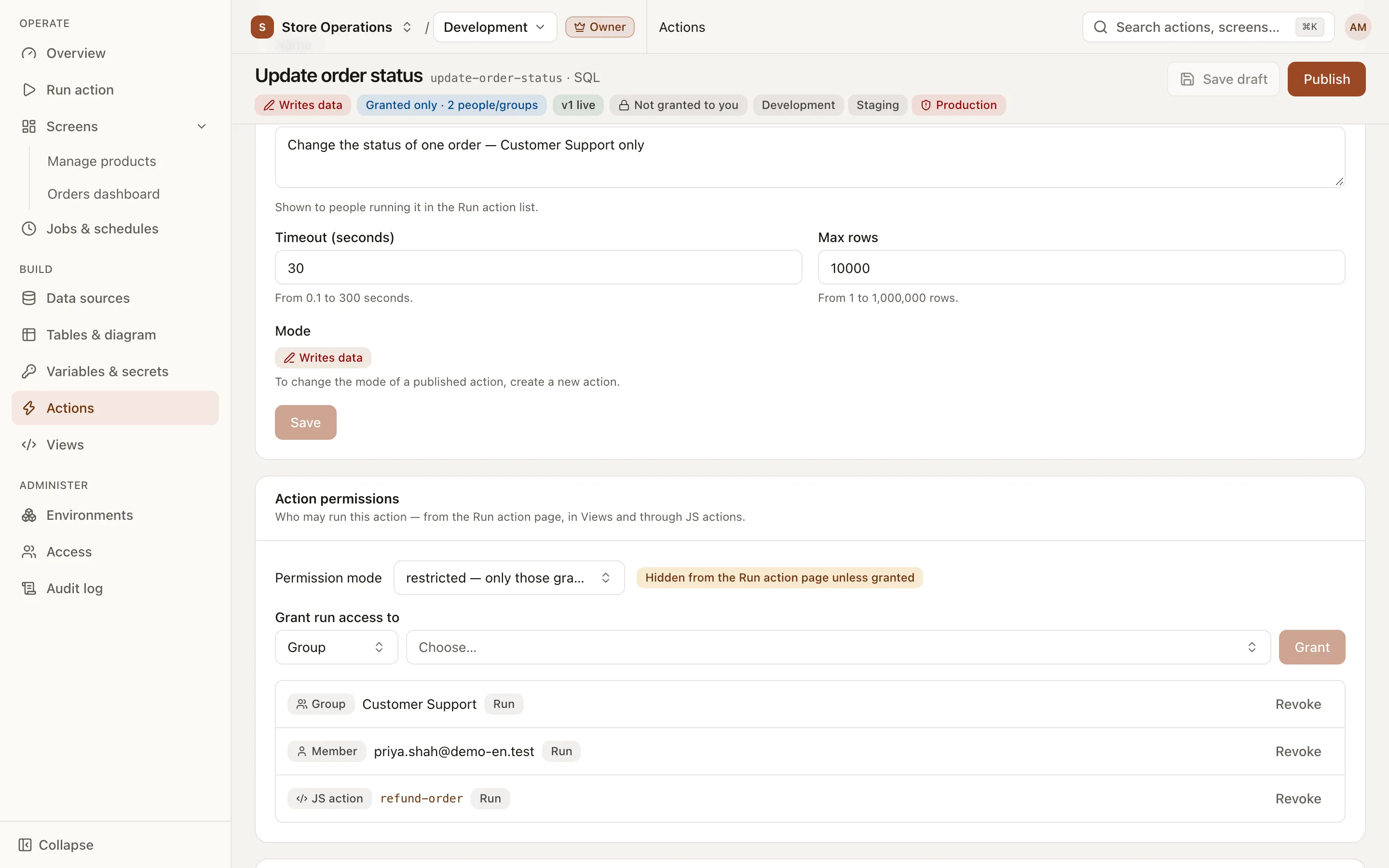
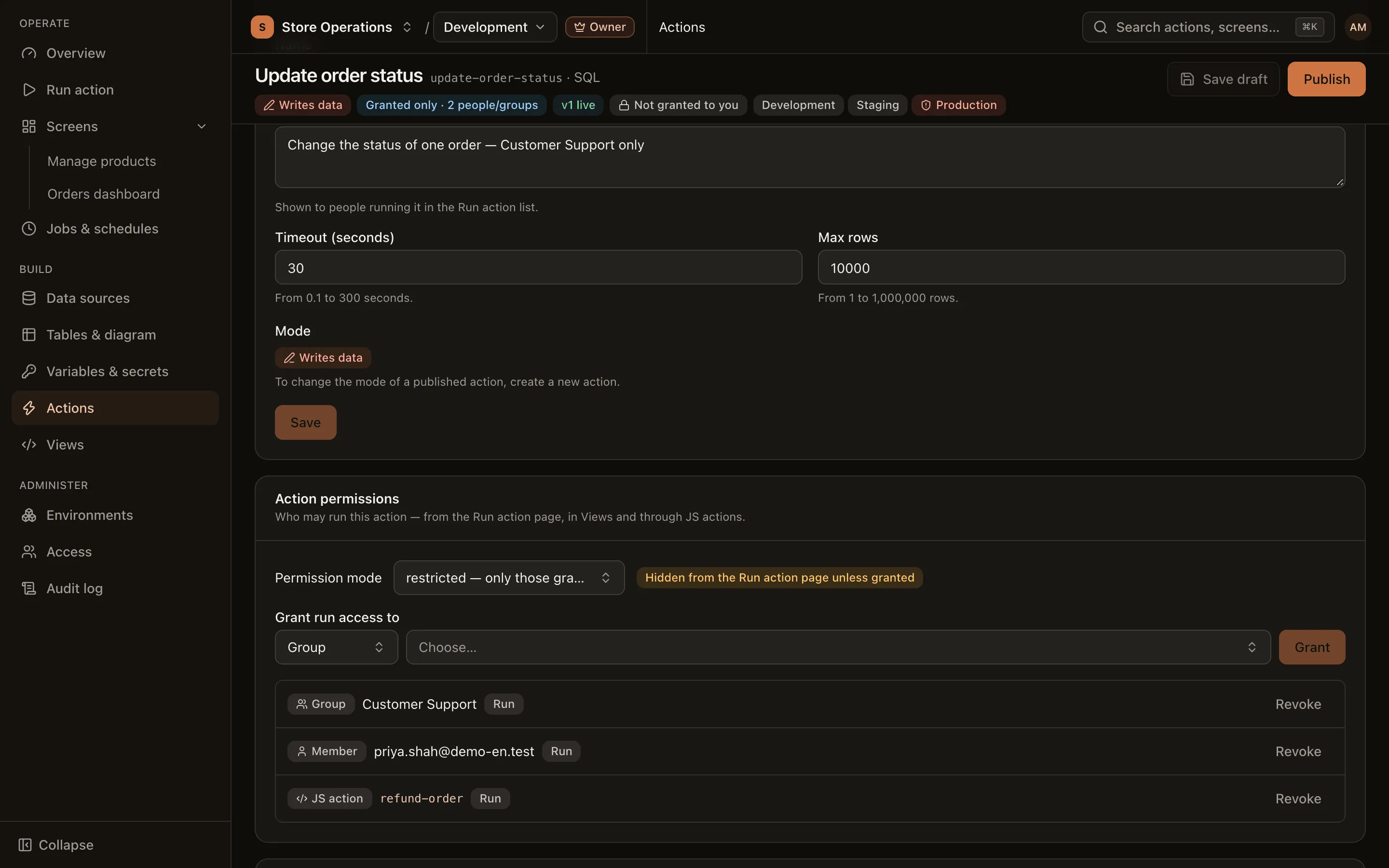
Section titled “Run permissions”The Action permissions card (visible to admins only) controls who can run the action from the Run action page, in views and through JS actions.
- Permission mode:
open — every memberorrestricted — only those granted. Changing the mode always requires confirmation. - In restricted mode, use Grant run access to to add a member, a group or a JS action, then click Grant. Click Revoke to remove access.
- A restricted action is hidden from the Run action page for users who have not been granted access. Owners and admins also cannot run it until they are granted access.
Delete an action
Section titled “Delete an action”The Delete action card is at the bottom of the Settings & access tab (Admin role required). When an action is deleted, nobody can run it, its schedules are deleted, unfinished jobs are cancelled and granted permissions are removed. Run history is kept. This operation cannot be undone.
An action cannot be deleted while a JS action calls it, a view (live version) declares it, or another action’s param loads its list from it. The confirmation dialog lists each reference to remove first.
See also
Section titled “See also”- JS actions: orchestrate several actions in one run.
- Run actions
- Limits