Build a view
Write a React/TSX screen that calls actions through @app/sdk, use @app/ui components, check a live preview, start from the drag-and-drop builder, and publish after a type check.
A view is a custom screen written in React (TSX). After a view is published, users open it under Screens. A view runs in an isolated frame and gets data only by calling actions, with the permissions of the user viewing it.
When to use a view
Section titled “When to use a view”The generated form on the Run action page, combined with a transformer for links, images and badges, covers most needs. Use a view when the generated form is not enough, for example:
- A table that combines data from several actions.
- A dashboard with several stats and tables on one page.
- A multi-step flow, for example selecting a row and clicking a button to run a write action on it.
For a standard management screen for one table, use Generated CRUD actions with Also create a view first.
Required roles
Section titled “Required roles”You need the Editor role or above to create, edit, publish, roll back and delete views. Users who open the screen need only the Viewer role and permission to run the actions the view calls.
Create a view
Section titled “Create a view”- Go to Build > Views and click New view.
- Enter a Name, a Slug (cannot be changed after publishing) and a Description (optional), then click Create.
- The detail page opens on the Code & Preview tab with starter code that runs immediately.
As with actions, a new view applies to every environment except production.
Editor and preview
Section titled “Editor and preview”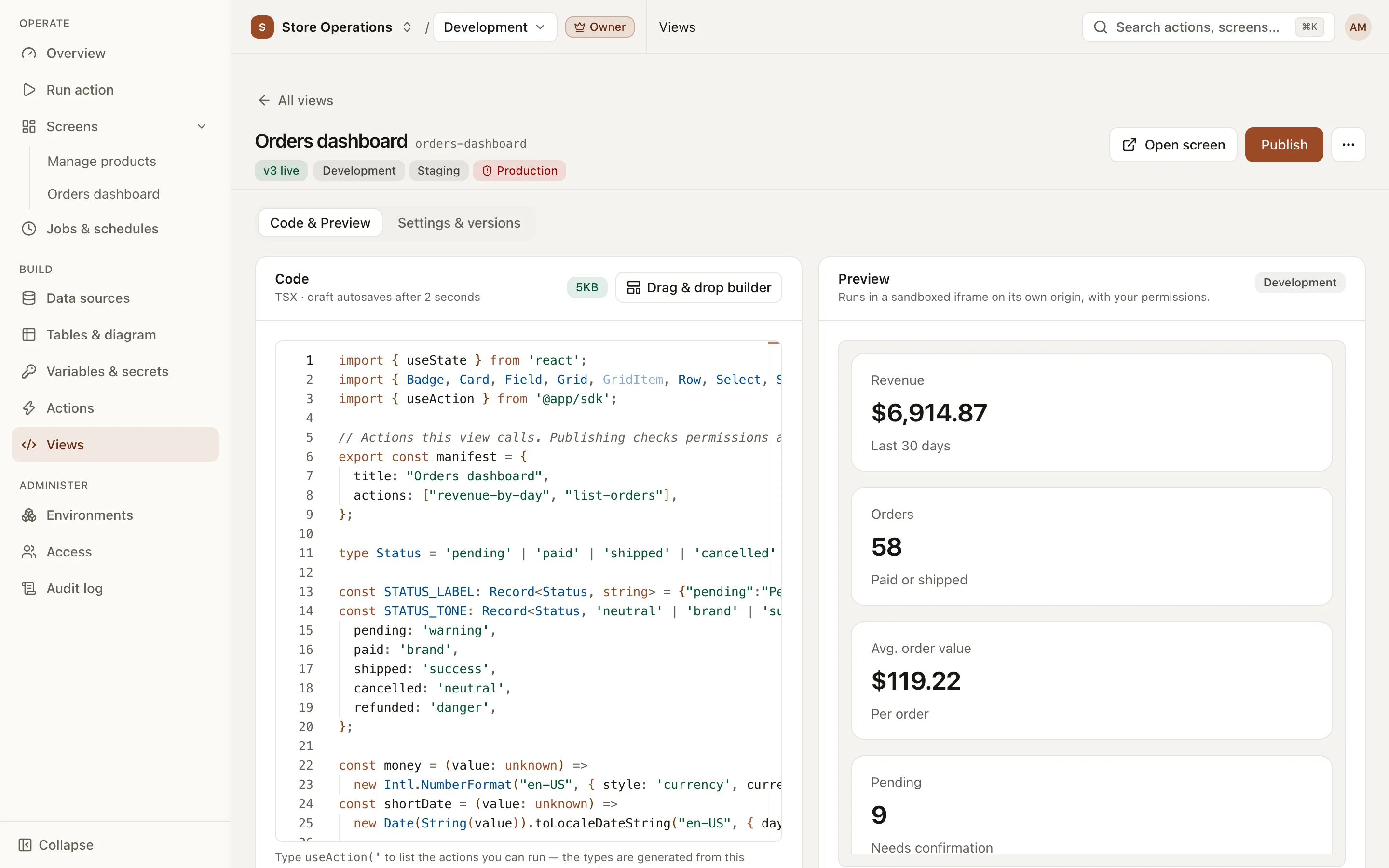
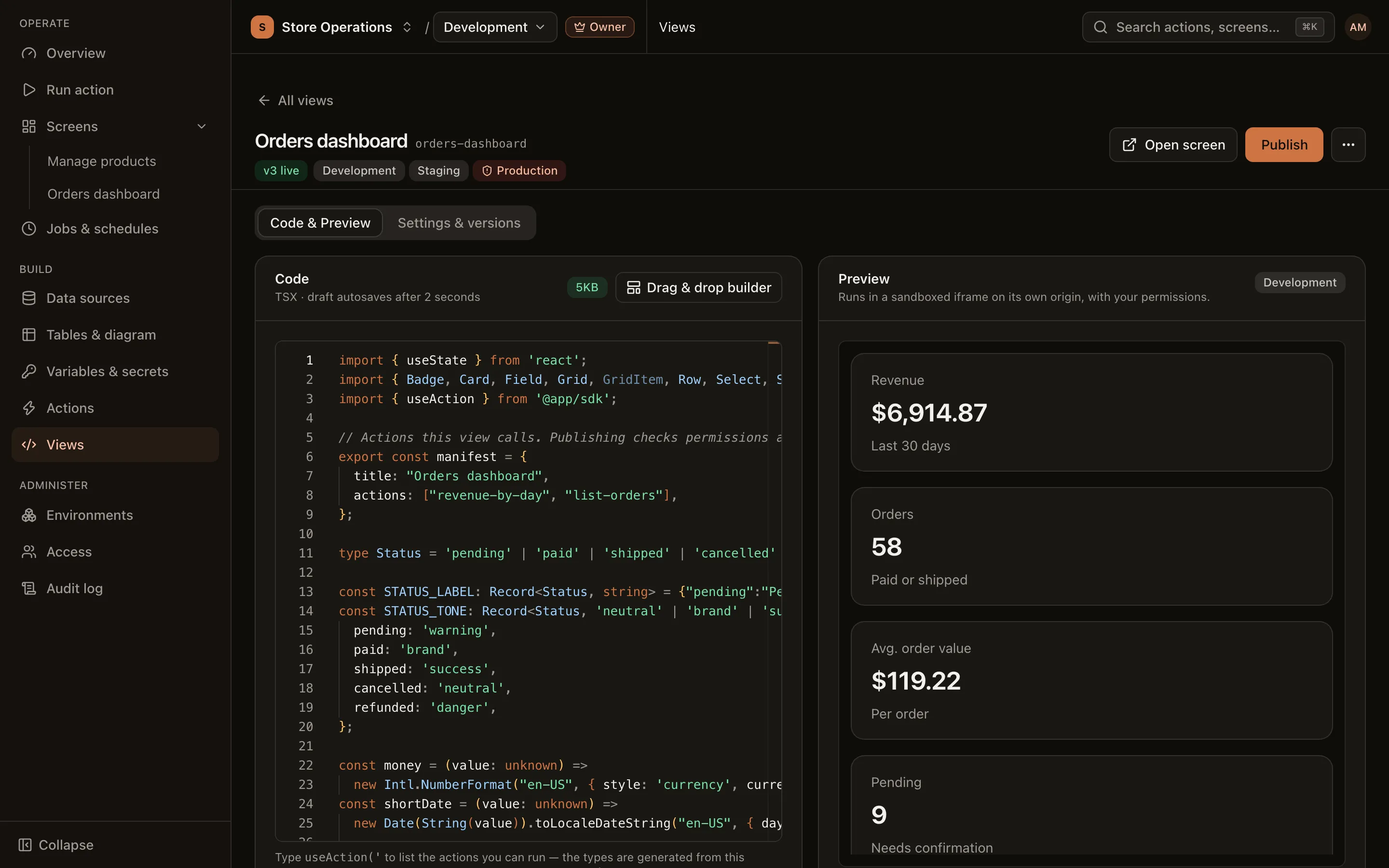
- The editor (Monaco) provides types based on your project’s actions. Type
useAction('to list the actions you can run; param names and types are checked as you type. Type errors do not block the preview, but they block publishing. - The preview on the right updates as you edit. It runs in an isolated frame, with your own permissions, on the data of the selected environment.
- The code is saved as a draft automatically 2 seconds after you stop typing; the status shows Draft saved at…. If someone else edited the same draft in the meantime, you choose between Take theirs and Keep mine, overwrite.
Start with the drag-and-drop builder
Section titled “Start with the drag-and-drop builder”To start without writing code from scratch, click Drag & drop builder at the top of the Code card.
- Drag blocks from the Blocks column into Layout. You can also click a block to add it at the end, or select a starter layout: One table, Form + table, Dashboard.
- Click a block to select a published action and set its title in the Properties column.
- Select the number of columns (1–4). Drag the ⋮⋮ handle to reorder blocks; set Width for blocks that need more space.
- Click Generate code. The code is inserted into the editor. Check the Preview, then click Publish.
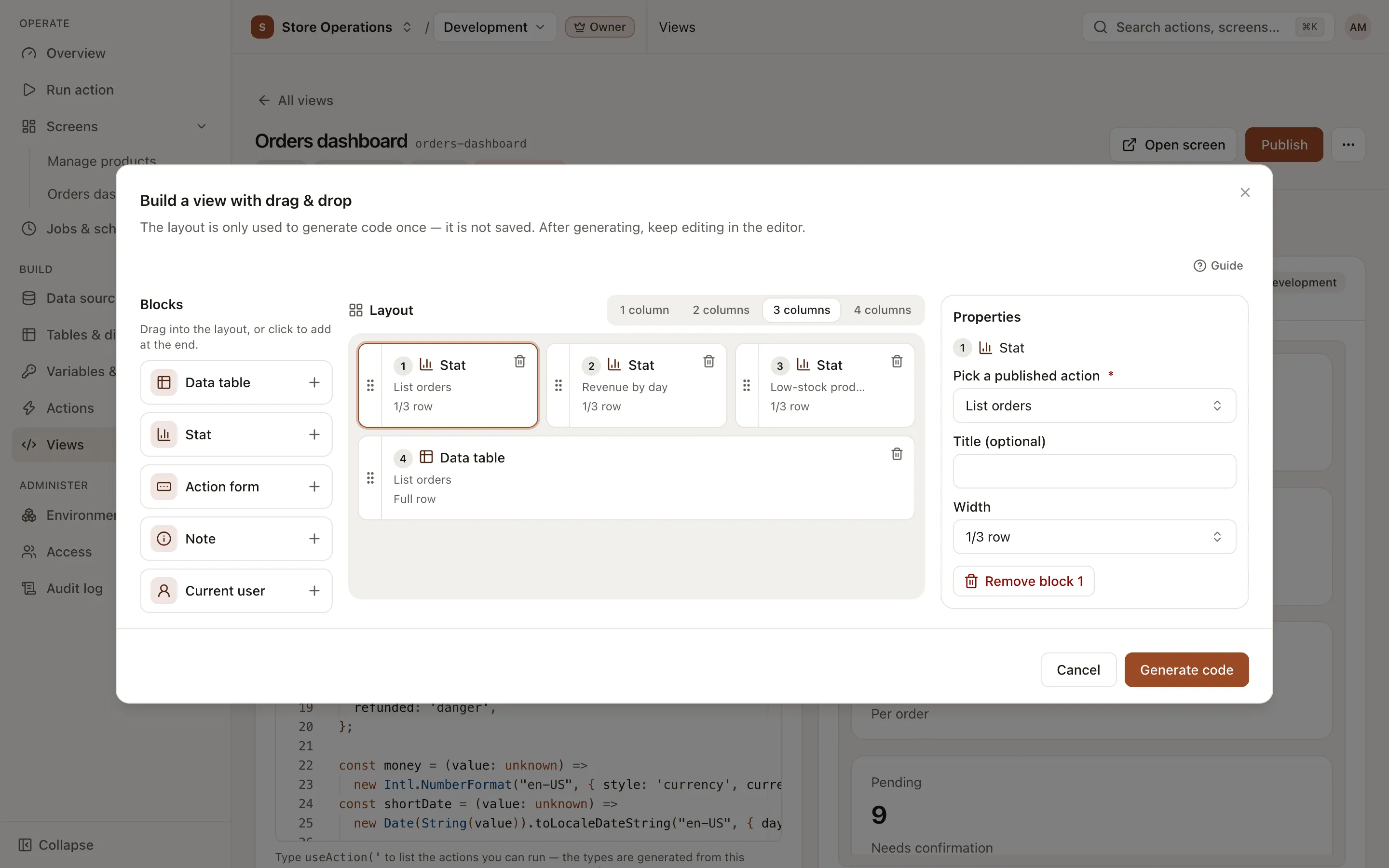
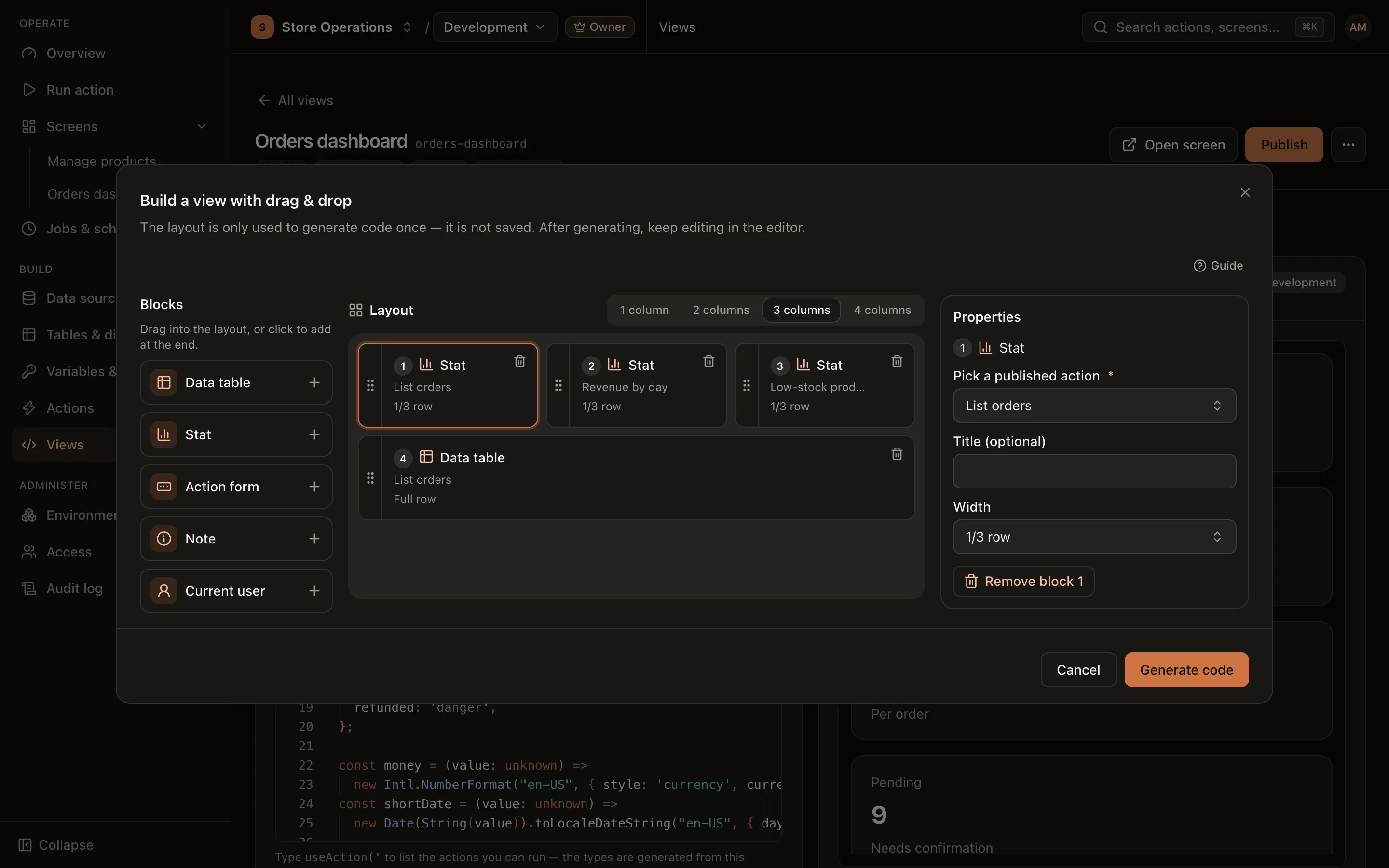
Block types: Data table, Stat (the number of rows an action returns), Action form, Note and Current user. A table block also has List interaction (Search box, Sort by column, Filter by column, Pagination) and Buttons on each row (up to 4; required params come from the row’s column with the same name; write actions ask for confirmation before running). The builder supports the keyboard: Tab to the ⋮⋮ handle, Space to pick up, arrow keys to move, Space to drop.
The builder generates code once. The layout itself is not stored; after the code is generated, all changes are made in the code. If the editor already contains code, you are asked before it is replaced (Replace code); any unpublished changes are lost.
Write a view with @app/sdk and @app/ui
Section titled “Write a view with @app/sdk and @app/ui”A view is a single TSX file with two exports:
export const manifest: the title and the list of actions the view may call.export default: the screen’s React component.
A view can import only react, react/jsx-runtime, react-dom/client, @app/ui and @app/sdk. There is no fetch; all data goes through actions.
import { useState } from 'react';import { Alert, Button, Card, Field, Input, Row, Spinner, Stack, Table, View } from '@app/ui';import { runAction, toast, useAction, useCanRunAction } from '@app/sdk';
export const manifest = {  title: 'Orders awaiting payment',  actions: ['orders-by-status', 'mark-order-paid'],};
export default function Screen() {  const orders = useAction('orders-by-status', { status: 'pending' });  const canMarkPaid = useCanRunAction('mark-order-paid');  const [orderId, setOrderId] = useState('');
  async function markPaid() {    try {      await runAction('mark-order-paid', { id: Number(orderId) });      toast('Order updated', { tone: 'success' });      orders.refetch();    } catch (error) {      toast(String(error), { tone: 'error' });    }  }
  return (    <View>      <Stack>        <Card title="Orders awaiting payment">          {orders.loading ? <Spinner /> : null}          {orders.error ? <Alert tone="danger">{orders.error.message}</Alert> : null}          <Table rows={orders.data?.rows ?? []} searchable sortable pageSize={20} />        </Card>        {canMarkPaid ? (          <Card title="Mark as paid">            <Row>              <Field label="Order ID">                <Input value={orderId} onChange={(event) => setOrderId(event.target.value)} />              </Field>              <Button onClick={markPaid} disabled={!orderId}>                Update              </Button>            </Row>          </Card>        ) : null}      </Stack>    </View>  );}
The example assumes the project has published the actions orders-by-status (param status) and mark-order-paid (param id).
@app/sdk
Section titled “@app/sdk”| API | Purpose |
|---|---|
useAction(slug, params) | Runs an action when the component renders; returns { data, loading, error, refetch }. data has rows, columns, rowCount. |
runAction(slug, params) | Runs an action when the user clicks (for example a write action); returns a Promise with rows, columns, rowCount, and throws a ViewSdkError if the run is refused. |
useCanRunAction(slug) | Returns whether the viewer can run an action. Use it only to show or hide buttons; it is not a security layer. |
useUser() | The id and email of the user viewing the screen (not the view’s author). |
useEnvironment() | The id, slug and isProduction of the selected environment. |
toast(message, { tone }) | A short notification; tone is info, success or error. |
navigate({ view }) / navigate({ action }) | Opens another view or an action’s run page. |
@app/ui
Section titled “@app/ui”Layout: View, Stack, Row, Grid (1–4 columns) and GridItem (span), Card. Content: Text, Badge, Alert, Spinner, EmptyState. Input: Button (primary, secondary, danger, danger-outline), Field, Input, Select. Data: Table. If columns is omitted, Table takes the columns from the first row; turn on searchable, sortable, filterable and pageSize to search, sort, filter and page within the view. Components follow the admin interface’s colors and light/dark mode.
The searchable, sortable, filterable and pageSize options of Table work only on rows that are already loaded. If the action pages on the server with limit / offset params (like the generated List action), pass those params to the action instead of turning on these options.
Publish
Section titled “Publish”Click Publish. The server runs every check again; results from the preview (which runs in the browser) are not used:
- A TypeScript type check against types generated from your project’s actions. A wrong slug, param name or param type is refused, with the line number.
- The import allowlist: importing a package outside the list, or importing another file, is refused.
- The file must
export defaulta component. - Every
useAction/runActionwith a fixed slug must be listed inmanifest.actions. - Permissions on each action in the manifest: the user publishing must be able to run every action the view declares.
If the view applies to a production environment, the Publish to environment dialog asks for confirmation. After publishing, users see the new version when they reload the page, without signing in again.
Versions, rollback and environments
Section titled “Versions, rollback and environments”The Settings & versions tab contains:
- General: name and description (shown in the view list). Changes apply immediately and do not create a version.
- Applies to environments: the view appears under Screens, and can call actions, only while the viewer is in an enabled environment. Enabling production always requires confirmation.
- Version history: View code for each version, compare it with the live version, and Roll back to this one. A rollback does not create a version. Users run the selected version after they reload, and you can switch back to the newer version at any time.
- Delete view: the view is removed from everyone’s Screens; the actions it calls are not affected. This operation cannot be undone.
Click Open screen to see the view as your users see it.
See also
Section titled “See also”- Screens: how users open published views.
- Access control